
打卡作业
| # Day10 作业布置 | |
| ## 一. 完成课堂所有的代码 | |
| * 边框可以不做 | |
| ## 二. 说出为什么需要清除浮动以及如何清除浮动 | |
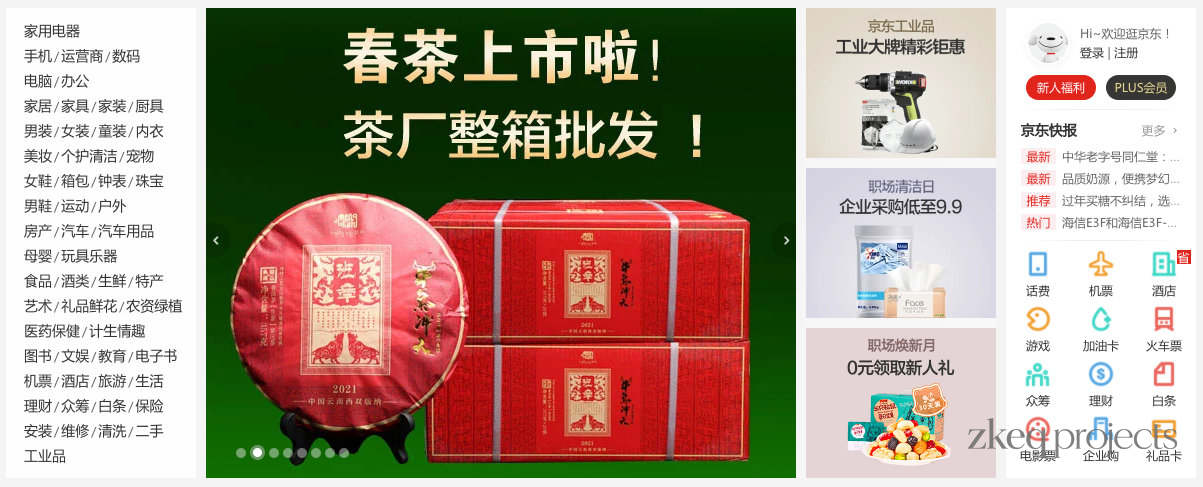
| ## 三. 利用浮动完成如下布局结构(完成结构即可)(选做) | |
|  | |
| ## 四. 总结flex布局container和item的属性以及作用(重要) | |
| ## 五. 自己找3个案例练习 | |
| * 案例一:其中用到元素定位 | |
| * 案例二:其中用到浮动布局 | |
| * 案例三:其中用到flex布局 | |
Day09 作业布置
一. 完成课堂所有的代码
二. 总结绝对定位的相对元素以及常见的解决方案
子绝父相
- 子元素绝对定位、
- 父元素相对定位
子绝父绝
子元素绝对定位
父元素绝对定位
子绝父固
- 子元素绝对定位
- 父元素固定定位
三. 总结浮动常见的规则内容
元素一旦浮动后, 脱离标准流
- 朝着向左或向右方向移动,直到自己的边界紧贴着包含块(一般是父元素)或者其他浮动元素的边界为止
- 定位元素会层叠在浮动元素上面
如果元素是向左(右)浮动,浮动元素的左(右)边界不能超出包含块的左(右)边界
浮动元素之间不能层叠
- 如果一个元素浮动,另一个浮动元素已经在那个位置了,后浮动的元素将紧贴着前一个浮动元素(左浮找左浮,右浮找右浮)
- 如果水平方向剩余的空间不够显示浮动元素,浮动元素将向下移动,直到有充足的空间为止
浮动元素不能与行内级内容层叠,行内级内容将会被浮动元素推出
- 比如行内级元素、inline-block元素、块级元素的文字内容
- 行内级元素、inline-block元素浮动后,其顶部将与所在行的顶部对齐
四. 通过浮动练习页面布局方案
| <html lang="en"> | |
| <head> | |
| <meta charset="UTF-8"> | |
| <meta http-equiv="X-UA-Compatible" content="IE=edge"> | |
| <meta name="viewport" content="width=device-width, initial-scale=1.0"> | |
| <title>Document</title> | |
| <link rel="stylesheet" href="./reset.css"> | |
| <style> | |
| .content { | |
| width: 1211px; | |
| margin: 0 auto; | |
| /* background-color: #f00; */ | |
| height: 1000px; | |
| } | |
| .wrapper { | |
| margin-right: -10px; | |
| } | |
| .item { | |
| float: left; | |
| width: 234px; | |
| margin-bottom: 10px; | |
| margin-right: 10px; | |
| } | |
| .item.left { | |
| height: 614px; | |
| background-image: url(../images/小米01.webp); | |
| } | |
| .item.right { | |
| height: 302px; | |
| } | |
| /* */ | |
| .items { | |
| background-color: #fff; | |
| display: block; | |
| width: 234px; | |
| height: 302px; | |
| /* margin: 0 10px; */ | |
| text-align: center; | |
| box-sizing: border-box; | |
| } | |
| .items:hover { | |
| box-shadow: 0 2px 20px 5px rgba(0, 0, 0, .1) | |
| } | |
| .items img { | |
| width: 160px; | |
| height: 160px; | |
| } | |
| .items .title { | |
| margin-top: 14px; | |
| color: #333; | |
| } | |
| .items .desc { | |
| color: rgb(105, 97, 97); | |
| margin-top: 8px; | |
| /* 单行显示省略号 */ | |
| white-space: nowrap; | |
| overflow: hidden; | |
| text-overflow: ellipsis; | |
| } | |
| .items .price { | |
| margin-top: 14px; | |
| font-size: 14px; | |
| } | |
| .items .new-price { | |
| color: #ff6700; | |
| } | |
| .items .old-price { | |
| color: #999; | |
| text-decoration: line-through; | |
| margin-left: 5px; | |
| } | |
| </style> | |
| </head> | |
| <body> | |
| <div class="content"> | |
| <div class="wrapper"> | |
| <div class="item left"></div> | |
| <div class="item right"> | |
| <a class="items" href="https://www.mi.com/xiaomipad5pro" target="_blank"> | |
| <img src="../images/xiaomi01.webp" alt=""> | |
| <h3 class="title">小米平板5 Pro</h3> | |
| <p class="desc"> | |
| 全新12代英特尔处理器,CNC一体精雕工艺,2.5K 120Hz高清屏,可选MX550独立显卡 | |
| </p> | |
| <div class="price"> | |
| <span class="new-price">2399元起</span> | |
| <span class="old-price">2499元</span> | |
| </div> | |
| </a> | |
| </div> | |
| <div class="item right"> | |
| <a class="items" href="https://www.mi.com/xiaomipad5pro" target="_blank"> | |
| <img src="../images/xiaomi01.webp" alt=""> | |
| <h3 class="title">小米平板5 Pro</h3> | |
| <p class="desc"> | |
| 全新12代英特尔处理器,CNC一体精雕工艺,2.5K 120Hz高清屏,可选MX550独立显卡 | |
| </p> | |
| <div class="price"> | |
| <span class="new-price">2399元起</span> | |
| <span class="old-price">2499元</span> | |
| </div> | |
| </a> | |
| </div> | |
| <div class="item right"> | |
| <a class="items" href="https://www.mi.com/xiaomipad5pro" target="_blank"> | |
| <img src="../images/xiaomi01.webp" alt=""> | |
| <h3 class="title">小米平板5 Pro</h3> | |
| <p class="desc"> | |
| 全新12代英特尔处理器,CNC一体精雕工艺,2.5K 120Hz高清屏,可选MX550独立显卡 | |
| </p> | |
| <div class="price"> | |
| <span class="new-price">2399元起</span> | |
| <span class="old-price">2499元</span> | |
| </div> | |
| </a> | |
| </div> | |
| <div class="item right"> | |
| <a class="items" href="https://www.mi.com/xiaomipad5pro" target="_blank"> | |
| <img src="../images/xiaomi01.webp" alt=""> | |
| <h3 class="title">小米平板5 Pro</h3> | |
| <p class="desc"> | |
| 全新12代英特尔处理器,CNC一体精雕工艺,2.5K 120Hz高清屏,可选MX550独立显卡 | |
| </p> | |
| <div class="price"> | |
| <span class="new-price">2399元起</span> | |
| <span class="old-price">2499元</span> | |
| </div> | |
| </a> | |
| </div> | |
| <div class="item right"> | |
| <a class="items" href="https://www.mi.com/xiaomipad5pro" target="_blank"> | |
| <img src="../images/xiaomi01.webp" alt=""> | |
| <h3 class="title">小米平板5 Pro</h3> | |
| <p class="desc"> | |
| 全新12代英特尔处理器,CNC一体精雕工艺,2.5K 120Hz高清屏,可选MX550独立显卡 | |
| </p> | |
| <div class="price"> | |
| <span class="new-price">2399元起</span> | |
| <span class="old-price">2499元</span> | |
| </div> | |
| </a> | |
| </div> | |
| <div class="item right"> | |
| <a class="items" href="https://www.mi.com/xiaomipad5pro" target="_blank"> | |
| <img src="../images/xiaomi01.webp" alt=""> | |
| <h3 class="title">小米平板5 Pro</h3> | |
| <p class="desc"> | |
| 全新12代英特尔处理器,CNC一体精雕工艺,2.5K 120Hz高清屏,可选MX550独立显卡 | |
| </p> | |
| <div class="price"> | |
| <span class="new-price">2399元起</span> | |
| <span class="old-price">2499元</span> | |
| </div> | |
| </a> | |
| </div> | |
| <div class="item right"> | |
| <a class="items" href="https://www.mi.com/xiaomipad5pro" target="_blank"> | |
| <img src="../images/xiaomi01.webp" alt=""> | |
| <h3 class="title">小米平板5 Pro</h3> | |
| <p class="desc"> | |
| 全新12代英特尔处理器,CNC一体精雕工艺,2.5K 120Hz高清屏,可选MX550独立显卡 | |
| </p> | |
| <div class="price"> | |
| <span class="new-price">2399元起</span> | |
| <span class="old-price">2499元</span> | |
| </div> | |
| </a> | |
| </div> | |
| <div class="item right"> | |
| <a class="items" href="https://www.mi.com/xiaomipad5pro" target="_blank"> | |
| <img src="../images/xiaomi01.webp" alt=""> | |
| <h3 class="title">小米平板5 Pro</h3> | |
| <p class="desc"> | |
| 全新12代英特尔处理器,CNC一体精雕工艺,2.5K 120Hz高清屏,可选MX550独立显卡 | |
| </p> | |
| <div class="price"> | |
| <span class="new-price">2399元起</span> | |
| <span class="old-price">2499元</span> | |
| </div> | |
| </a> | |
| </div> | |
| </div> | |
| </div> | |
| </body> | |
| </html> |
五. 完成下面的案例练习
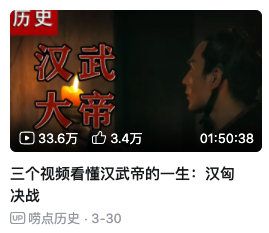
| <html lang="en"> | |
| <head> | |
| <meta charset="UTF-8"> | |
| <meta http-equiv="X-UA-Compatible" content="IE=edge"> | |
| <meta name="viewport" content="width=device-width, initial-scale=1.0"> | |
| <title>Document</title> | |
| <link rel="icon " href="../icon/iconfont.ttf"> | |
| <link rel="stylesheet" href="../icon/iconfont.css"> | |
| <style> | |
| /* 重置样式 */ | |
| a, | |
| i { | |
| text-decoration: none; | |
| color: #333; | |
| } | |
| .content { | |
| width: 275px; | |
| margin: 0 auto; | |
| } | |
| .content .item { | |
| display: block; | |
| position: relative; | |
| border-radius: 6px; | |
| overflow: hidden; | |
| } | |
| .content .item img { | |
| width: 275px; | |
| height: 154px; | |
| vertical-align: top; | |
| } | |
| .item .bottom { | |
| position: absolute; | |
| left: 0; | |
| right: 0; | |
| bottom: 0; | |
| height: 27px; | |
| line-height: 27px; | |
| font-size: 12px; | |
| color: #fff; | |
| } | |
| .bottom .icons { | |
| position: relative; | |
| top: 1px; | |
| padding-left: 8px; | |
| color: #fff; | |
| } | |
| .bottom .icon_middle { | |
| padding-left: 10px; | |
| color: #fff; | |
| } | |
| .bottom .icon_right { | |
| position: absolute; | |
| right: 10px; | |
| } | |
| .text_bottom { | |
| display: block; | |
| margin: 8px 0; | |
| font-weight: 700; | |
| } | |
| .up { | |
| color: rgb(172, 163, 163); | |
| } | |
| .icon_up { | |
| position: relative; | |
| top: 1px; | |
| font-size: 16px; | |
| color: rgb(172, 163, 163); | |
| } | |
| .up>span { | |
| font-size: 14px; | |
| } | |
| </style> | |
| </head> | |
| <body> | |
| <div class="content"> | |
| <a class="item" href=""> | |
| <img src="../images/bilibili.webp" alt=""> | |
| <div class="bottom"> | |
| <i class="iconfont icons"> | |
| </i> | |
| <span class="icon_left">33.6万</span> | |
| <i class="iconfont icon_middle">󰆸</i> | |
| <span class="icon_midle">3.4万</span> | |
| <span class="icon_right">01:50:38</span> | |
| </div> | |
| </a> | |
| <span class="text_bottom">三个视频看懂汉武帝的一生:汉匈决战来临</span> | |
| <div class="up"> | |
| <i class="iconfont icon_up"></i> | |
| <span>唠点历史</span> | |
| <span>3-30</span> | |
| </div> | |
| </div> | |
| </body> | |
| </html> |
务必下载!!
今日的代码和讲义 以及思维导图:【点击此链接下载 Day10.zip】
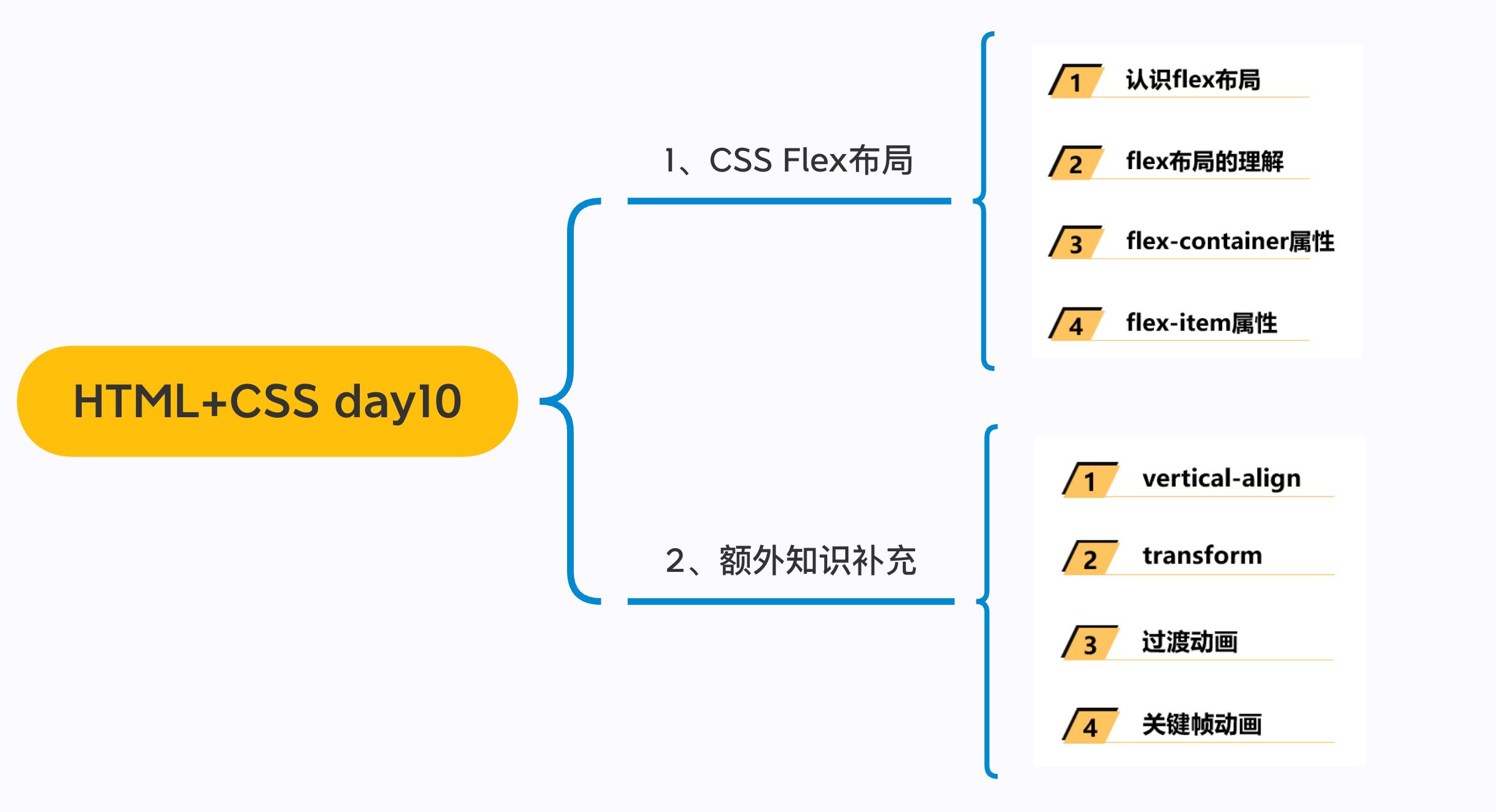
大纲
一. 浮动float
1.1. 两个案例
| * 自己做一下 | |
| * 第二个边框不要现在必须学会 |
浮动练习三
- 浮动布局方案:
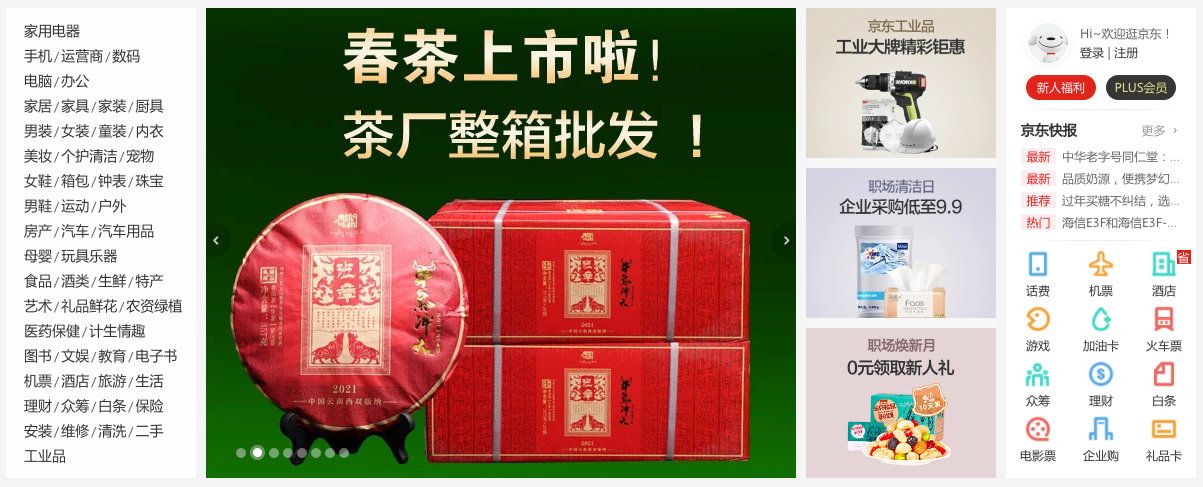
- 实现京东页面下面的布局
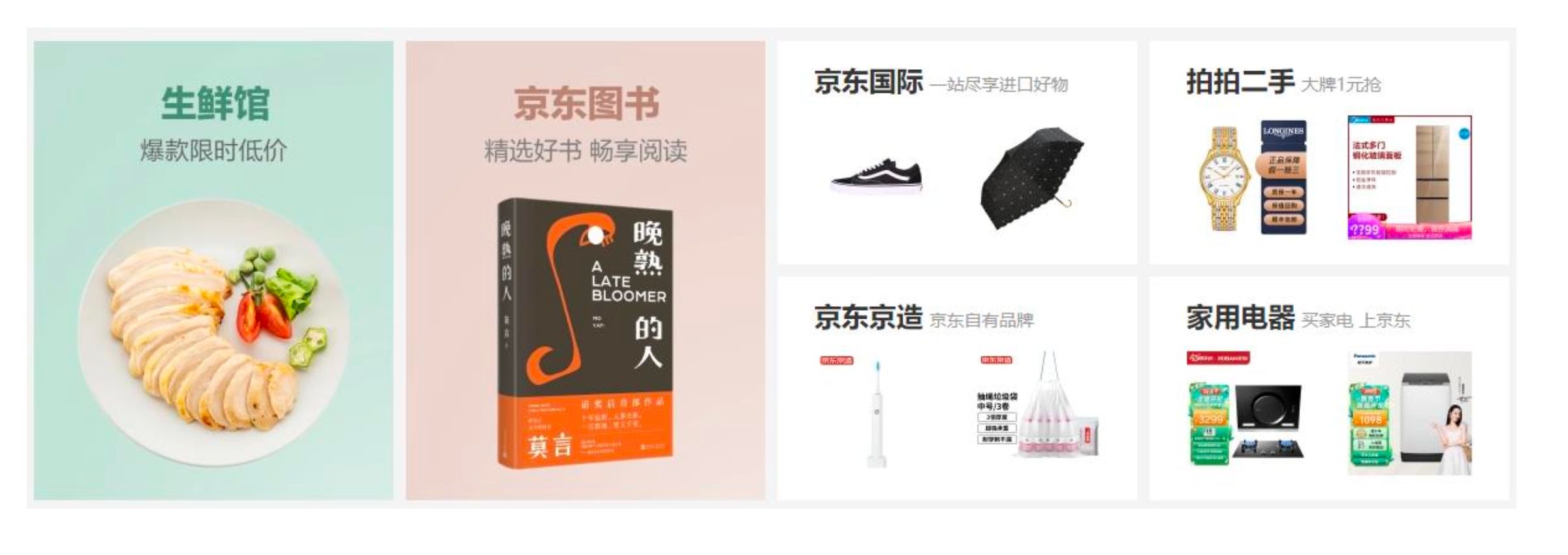
| <html lang="en"> | |
| <head> | |
| <meta charset="UTF-8"> | |
| <meta http-equiv="X-UA-Compatible" content="IE=edge"> | |
| <meta name="viewport" content="width=device-width, initial-scale=1.0"> | |
| <title>Document</title> | |
| <style> | |
| .content { | |
| width: 1190px; | |
| margin: 0 auto; | |
| background-color: #f00; | |
| height: 1000px; | |
| } | |
| .wrapper { | |
| margin-right: -10px; | |
| } | |
| .item { | |
| width: 290px; | |
| background-color: purple; | |
| margin-bottom: 10px; | |
| float: left; | |
| margin-right: 10px; | |
| } | |
| .item.left { | |
| height: 370px; | |
| } | |
| .item.right { | |
| height: 180px; | |
| } | |
| </style> | |
| </head> | |
| <body> | |
| <div class="content"> | |
| <div class="wrapper"> | |
| <div class="item left"></div> | |
| <div class="item left"></div> | |
| <div class="item right"></div> | |
| <div class="item right"></div> | |
| <div class="item right"></div> | |
| <div class="item right"></div> | |
| <div class="item right"></div> | |
| <div class="item right"></div> | |
| <div class="item right"></div> | |
| <div class="item right"></div> | |
| <div class="item right"></div> | |
| <div class="item right"></div> | |
| <div class="item right"></div> | |
| <div class="item right"></div> | |
| <div class="item right"></div> | |
| <div class="item right"></div> | |
| <div class="item right"></div> | |
| <div class="item right"></div> | |
| <div class="item right"></div> | |
| <div class="item right"></div> | |
| <div class="item right"></div> | |
| <div class="item right"></div> | |
| </div> | |
| </div> | |
| </body> | |
| </html> |
浮动练习四
- 浮动布局方案:
- 实现考拉页面下面的布局

| <html lang="en"> | |
| <head> | |
| <meta charset="UTF-8"> | |
| <meta http-equiv="X-UA-Compatible" content="IE=edge"> | |
| <meta name="viewport" content="width=device-width, initial-scale=1.0"> | |
| <title>Document</title> | |
| <style> | |
| .content { | |
| width: 1100px; | |
| margin: 0 auto; | |
| height: 800px; | |
| background: #ccc; | |
| } | |
| .box { | |
| /* margin-left: 1px; */ | |
| } | |
| .item { | |
| width: 221px; | |
| height: 168px; | |
| background: orange; | |
| color: #fff; | |
| float: left; | |
| border: 1px solid #000; | |
| margin-right: -1px; | |
| box-sizing: border-box; | |
| } | |
| .item.first { | |
| width: 220px; | |
| } | |
| </style> | |
| </head> | |
| <body> | |
| <div class="content"> | |
| <div class="box"> | |
| <div class="item first">1</div> | |
| <div class="item">2</div> | |
| <div class="item">3</div> | |
| <div class="item">4</div> | |
| <div class="item">5</div> | |
| </div> | |
| </div> | |
| </body> | |
| </html> |
1.2. 清除浮动
| 伪元素:after |
浮动的问题 – 高度塌陷
- 由于浮动元素脱离了标准流,变成了脱标元素,所以
不再向父元素汇报高度- 父元素
计算总高度时,就不会计算浮动子元素的高度,导致了高度坍塌的问题
- 父元素
- 解决父元素高度坍塌问题的过程,一般叫做清浮动(清理浮动、清除浮动)
- 清浮动的目的是
- 让
父元素计算总高度的时候,把浮动子元素的高度算进去
- 让
- 如何清除浮动呢? 使用
clear属性
CSS属性 - clear
clear属性是做什么的呢?clear属性可以指定一个元素是否必须移动(清除浮动后)到在它之前的浮动元素下面;
clear的常用取值left:要求元素的顶部低于之前生成的所有左浮动元素的底部right:要求元素的顶部低于之前生成的所有右浮动元素的底部both:要求元素的顶部低于之前生成的所有浮动元素的底部none:默认值,无特殊要求
- 那么我们可以利用这个特性来清除浮动.
清除浮动的方法
- 事实上我们有很多方法可以清除浮动
- 方法一: 给父元素设置固定高度
- 扩展性不好(不推荐)
- 方法二: 在父元素最后增加一个空的块级子元素,并且让它设置
clear: both- 会
增加很多无意义的空标签,维护麻烦 - 违反了结构与样式分离的原则(不推荐)
- 会
- 方法三: 给父元素添加一个伪元素
推荐;- 编写好后可以轻松实现清除浮动;
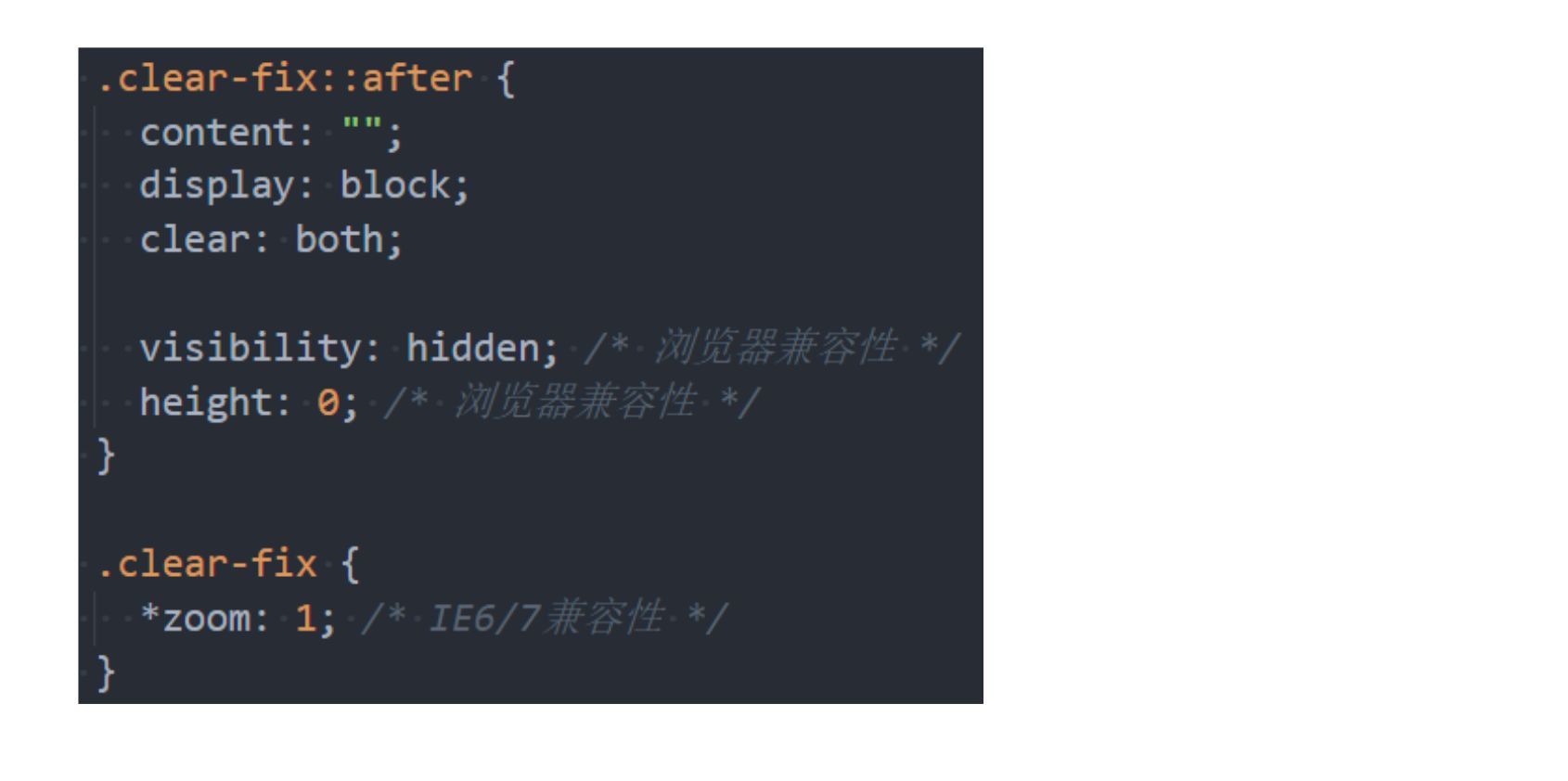
方法三 – 伪元素清除浮动
- 给父元素增加
::after伪元素- 纯CSS样式解决,结构与样式分离(推荐)
| /* 父级元素 */ | |
| .clearfix:after{ | |
| content: ''; | |
| display: block; | |
| clear: both; | |
| /* 浏览器兼容问题 */ | |
| visibility: hidden; | |
| height: 0; | |
| } |
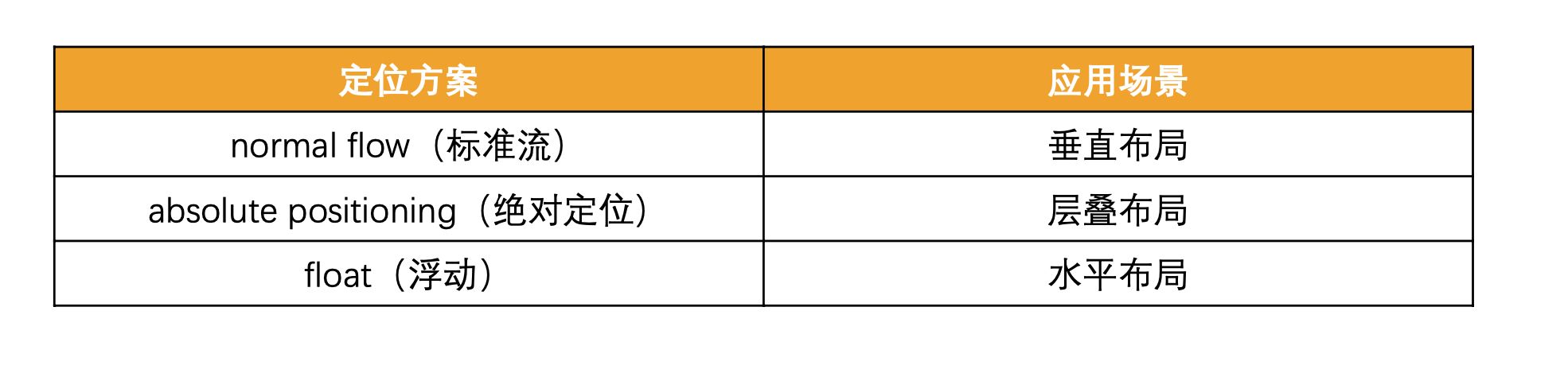
1.3. 多种布局对比
- 标准流
- 定位
- 浮动
二. flex布局
2.1. 认识flex布局
认识flexbox
- Flexbox翻译为弹性盒子:
弹性盒子是一种用于按行或按列布局元素的一维布局方法;- 元素可以
膨胀以填充额外的空间,收缩以适应更小的空间; - 通常我们使用Flexbox来进行布局的方案称之为
flex布局(flex layout);
- flex布局是目前web开发中使用最多的布局方案:
- flex 布局(Flexible 布局,弹性布局);
- 目前特别在
移动端可以说已经完全普及; - 在
PC端也几乎已经完全普及和使用, 只有非常少数的网站依然在用浮动来布局;
- 为什么需要flex布局呢?
- 长久以来,CSS 布局中唯一可靠且跨浏览器兼容的
布局工具只有 floats 和 positioning。 - 但是这两种方法本身
存在很大的局限性, 并且他们用于布局实在是无奈之举;
- 长久以来,CSS 布局中唯一可靠且跨浏览器兼容的
原先的布局存在的痛点
原来的布局存在哪些痛点呢? 举例说明:
比如在父内容里面
垂直居中一个块内容。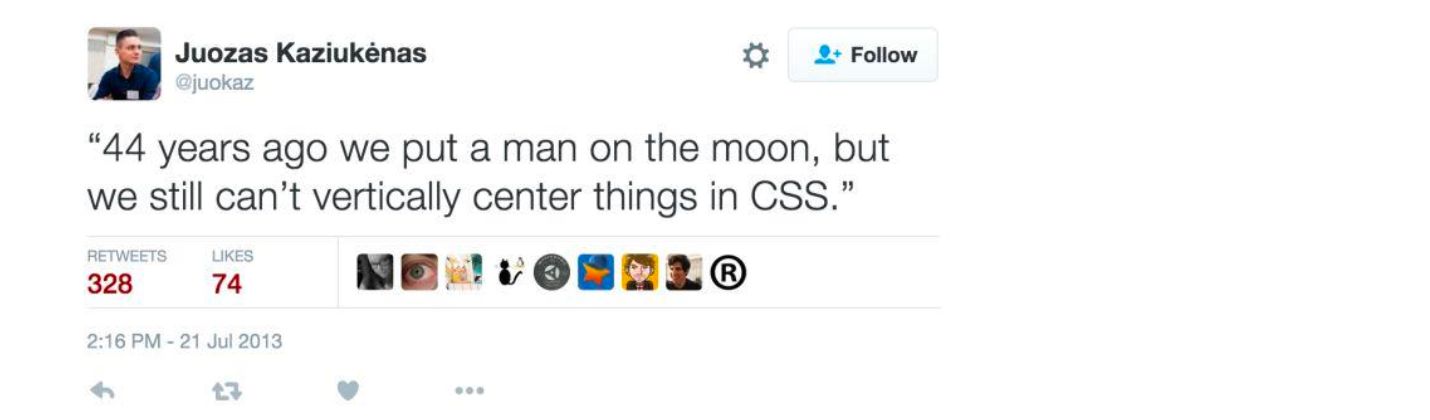
比如使容器的
所有子项等分可用宽度/高度,而不管有多少宽度/高度可用。比如使
多列布局中的所有列采用相同的高度,即使它们包含的内容量不同。
flex布局的出现
- 所以长久以来, 大家非常期待一种真正可以用于对元素布局的方案: 于是flex布局出现了;
- Nature and nature’s laws lay hid in night; God said “Let
Newtonbe” and all was light. - 自然与自然的法则在黑夜隐藏,于是上帝说,让
牛顿出现吧!于是世界就明亮了起来.
- Nature and nature’s laws lay hid in night; God said “Let
- flexbox在使用时, 我们最担心的是它的兼容性问题:
- 我们可以在
caniuse上查询到具体的兼容性
- 我们可以在
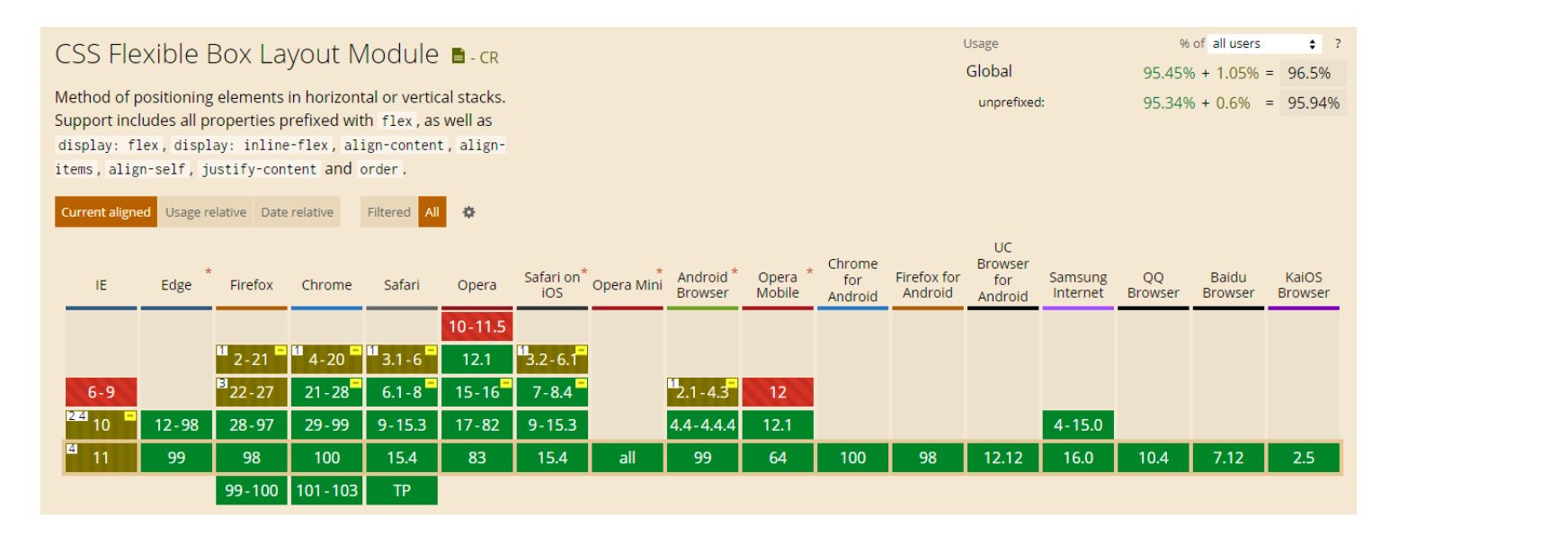
2.2. flex布局重要的概念
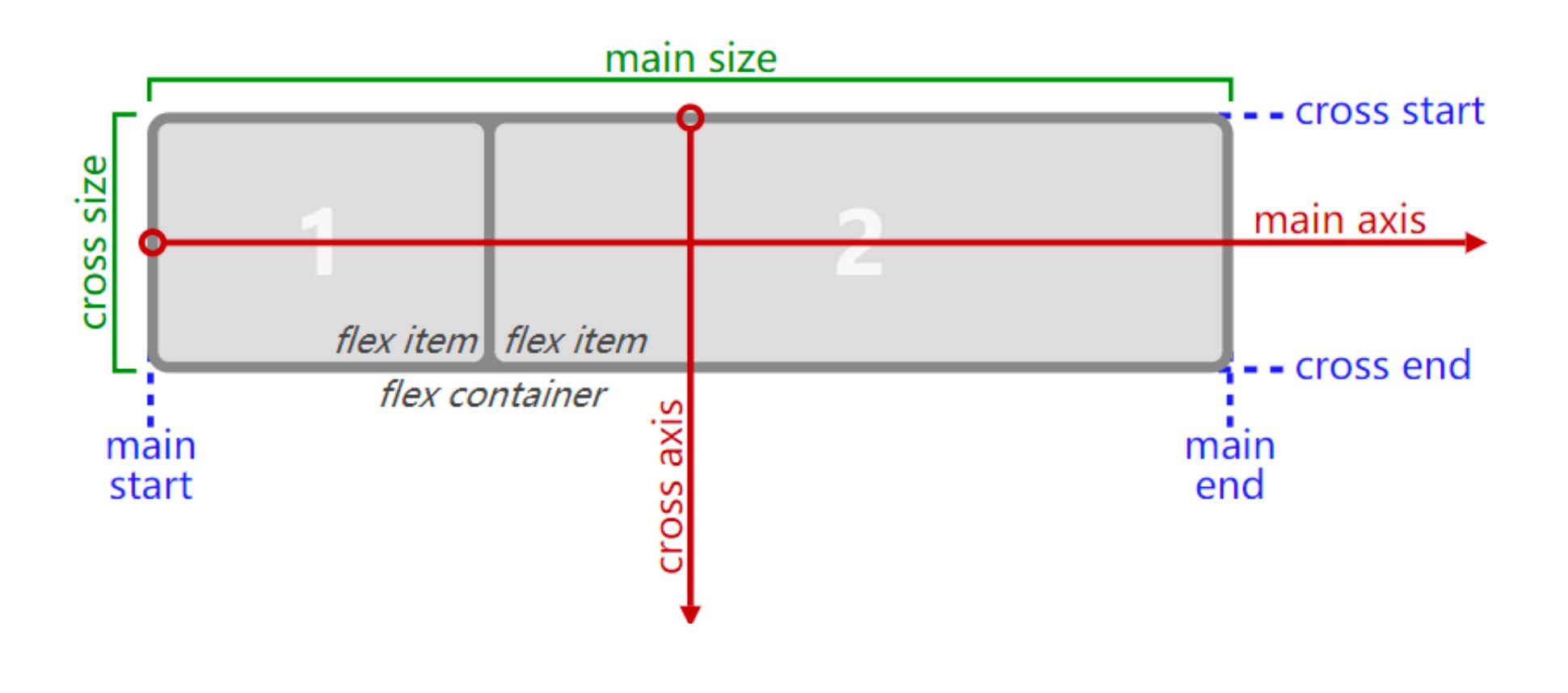
| * flex container | |
| * flex item | |
| * main axis/cross axios | |
| * main start/main end/cross start / cross end |
- 两个重要的概念:
- 开启了 flex 布局的元素叫
flex container - flex container 里面的直接子元素叫做
flex item
- 开启了 flex 布局的元素叫
- 当flex container中的子元素变成了flex item时, 具备一下特点:
- flex item的布局将
受flex container属性的设置来进行控制和布局; - flex item
不再严格区分块级元素和行内级元素; - flex item
默认情况下是包裹内容的,但是可以设置宽度和高度;
- flex item的布局将
- 设置 display 属性为 flex 或者 inline-flex 可以成为 flex container
flex: flex container 以 block-level 形式存在inline-flex: flex container 以 inline-level 形式存在
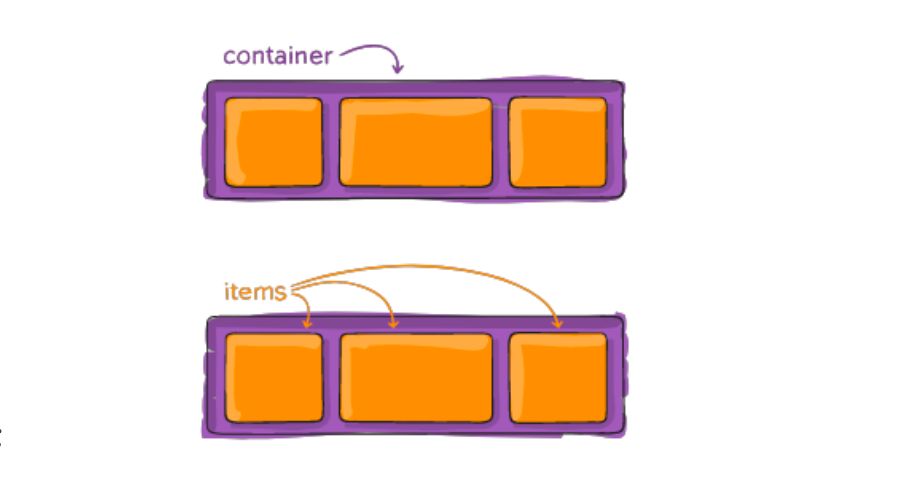
flex布局的模型
2.3. flex container中的属性
| ◼ 应用在 flex container 上的 CSS 属性 | |
| * flex-flow * flex-direction | |
| * flex-wrap * flex-flow | |
| * justify-content * align-items | |
| * align-content | |
| ◼ 应用在 flex items 上的 CSS 属性 | |
| * flex-grow * flex-basis | |
| * flex-shrink * order | |
| * align-self * flex |
flex-direction
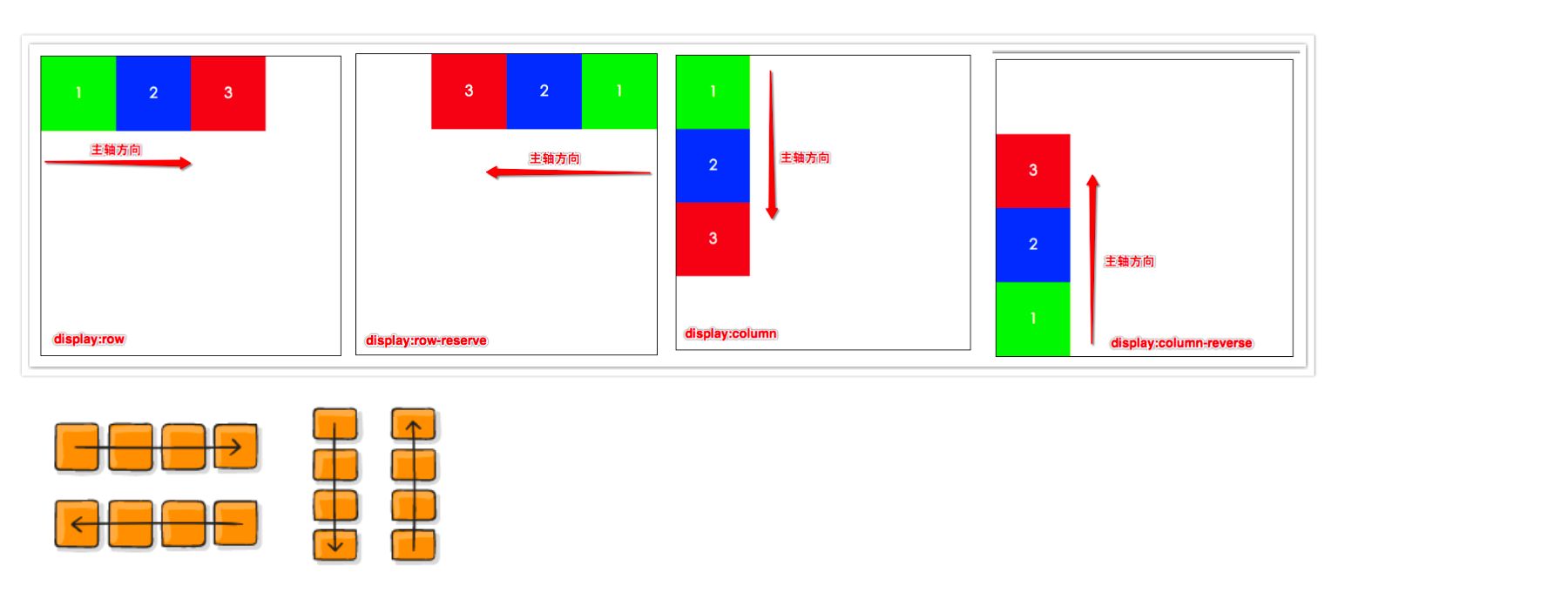
- flex items 默认都是沿着 main axis(主轴)从 main start 开始往 main end 方向排布
flex-direction决定了main axis的方向,有 4 个取值row(默认值)、row-reverse、column、column-reverse
flex-wrap
- flex-wrap 决定了 flex container 是单行还是多行
nowrap(默认):单行wrap:多行wrap-reverse:多行(对比 wrap,cross start 与 cross end 相反)
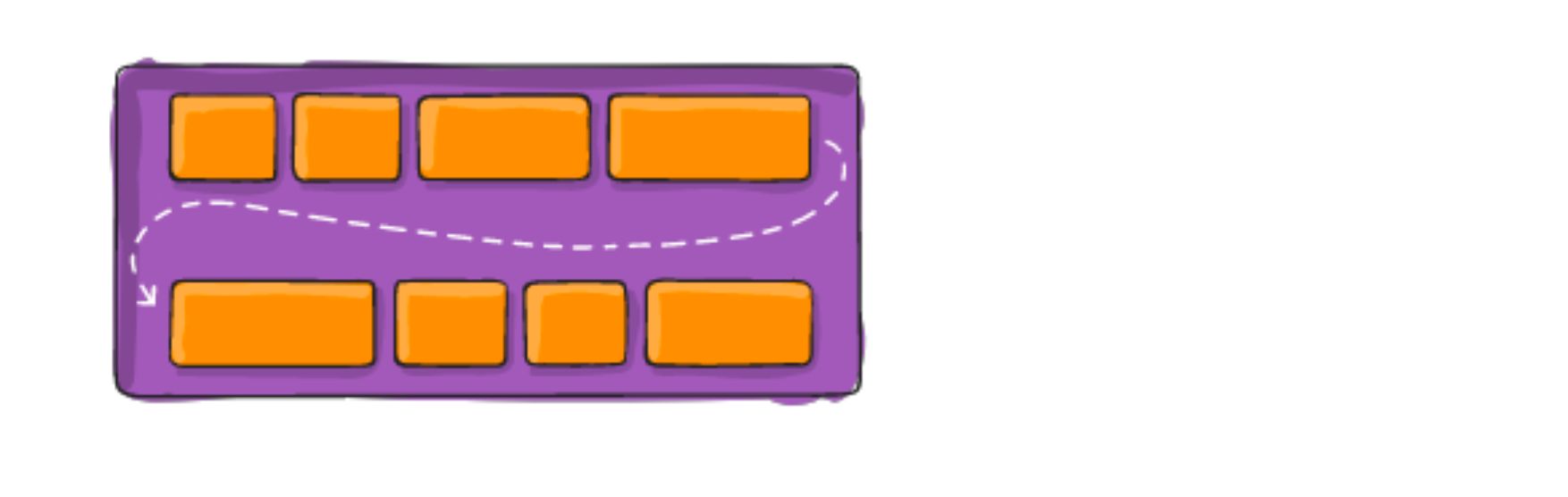
flex-flow
flex-flow属性是flex-direction和flex-wrap的简写。- 顺序任何, 并且都可以省略;

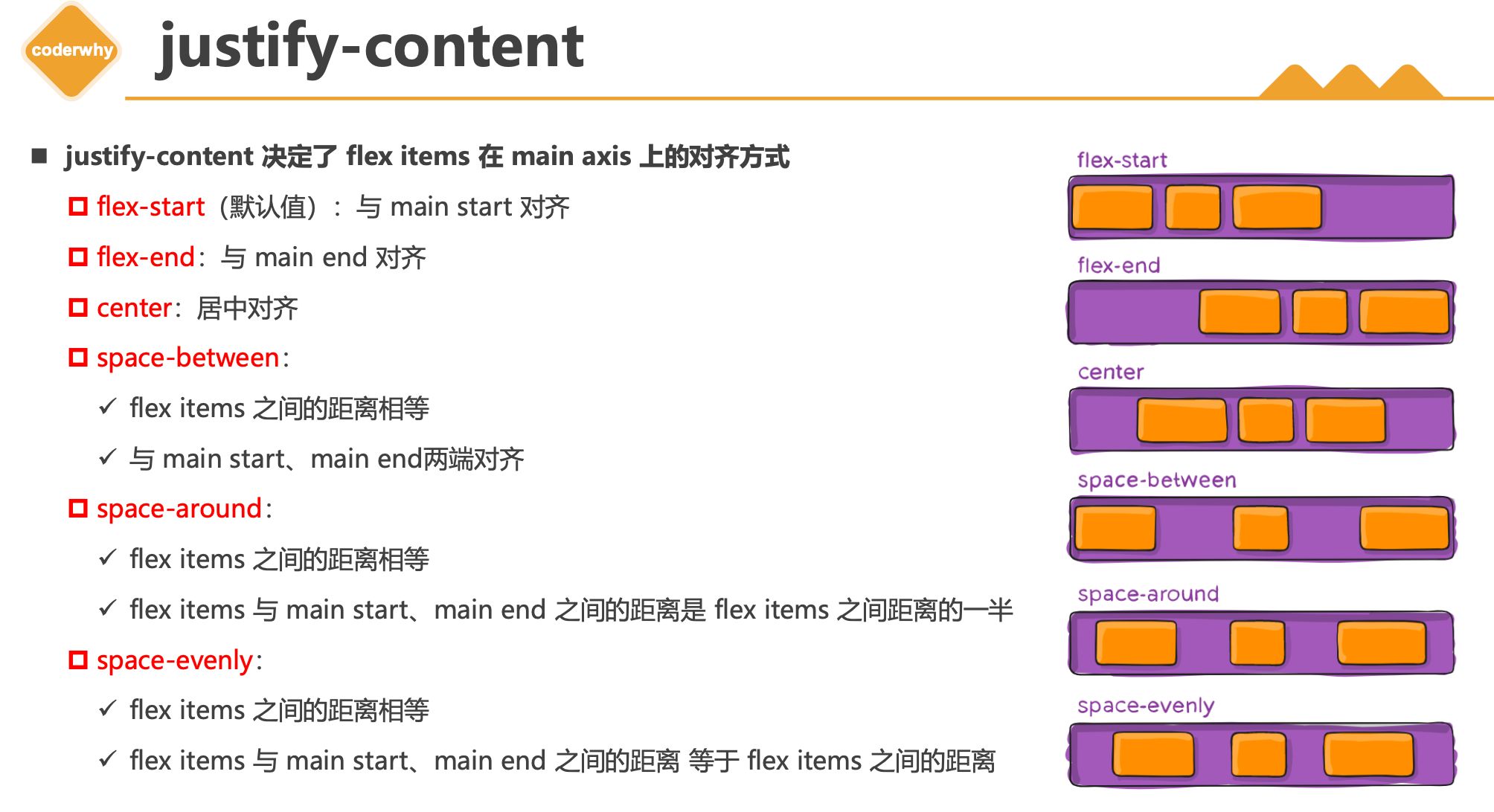
justify-content
- justify-content 决定了 flex items 在 main axis 上的对齐方式
flex-start(默认值):与 main start 对齐flex-end:与 main end 对齐center:居中对齐space-between:
✓ flex items 之间的距离相等
✓ 与 main start、main end两端对齐space-around:
✓ flex items 之间的距离相等
✓ flex items 与 main start、main end 之间的距离是 flex items 之间距离的一半space-evenly:
✓ flex items 之间的距离相等
✓ flex items 与 main start、main end 之间的距离 等于 flex items 之间的距离
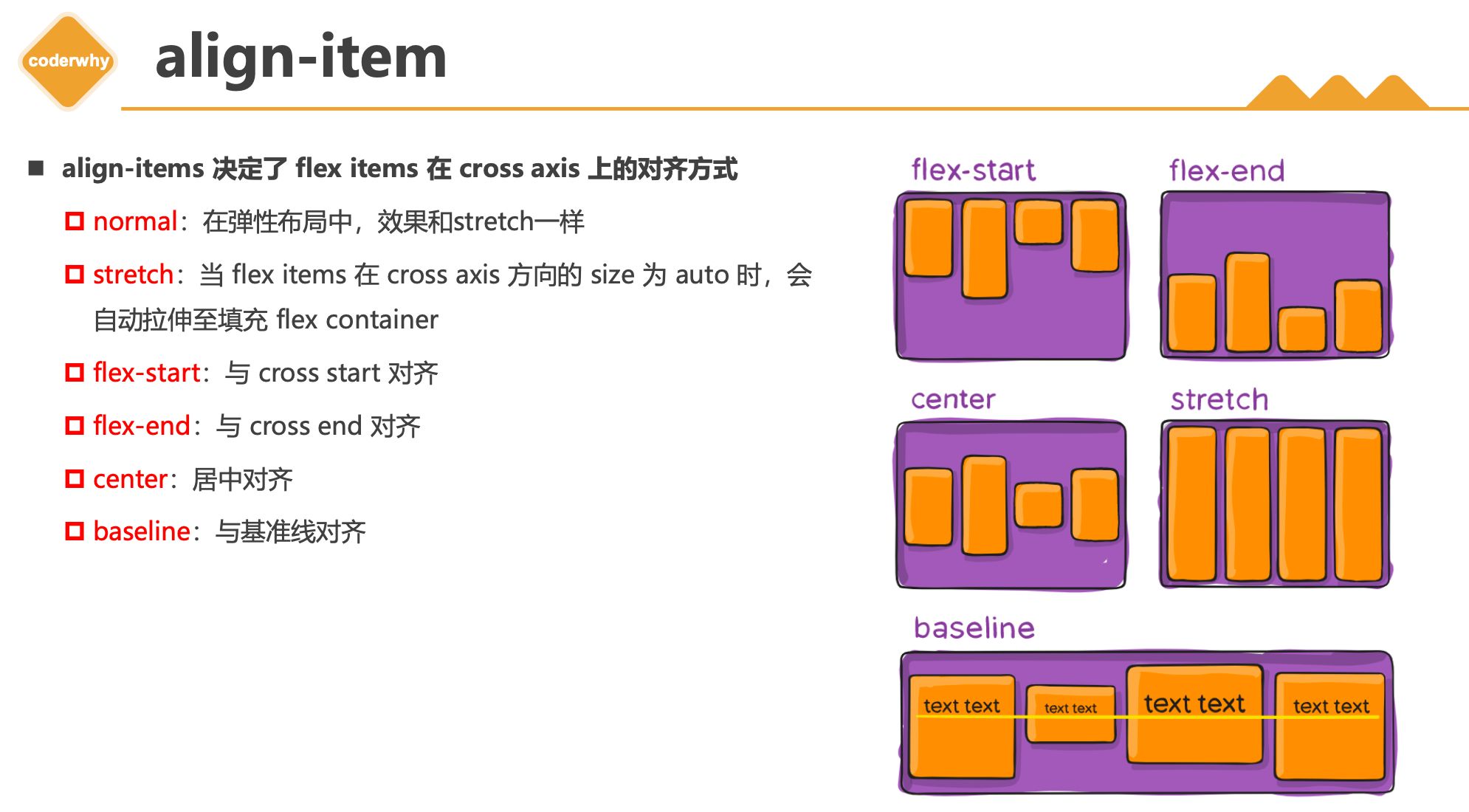
align-item
- align-items 决定了 flex items 在 cross axis 上的对齐方式
normal:在弹性布局中,效果和stretch一样stretch:当 flex items 在 cross axis 方向的 size 为 auto 时,会 自动拉伸至填充 flex containerflex-start:与 cross start 对齐flex-end:与 cross end 对齐center:居中对齐baseline:与基准线对齐
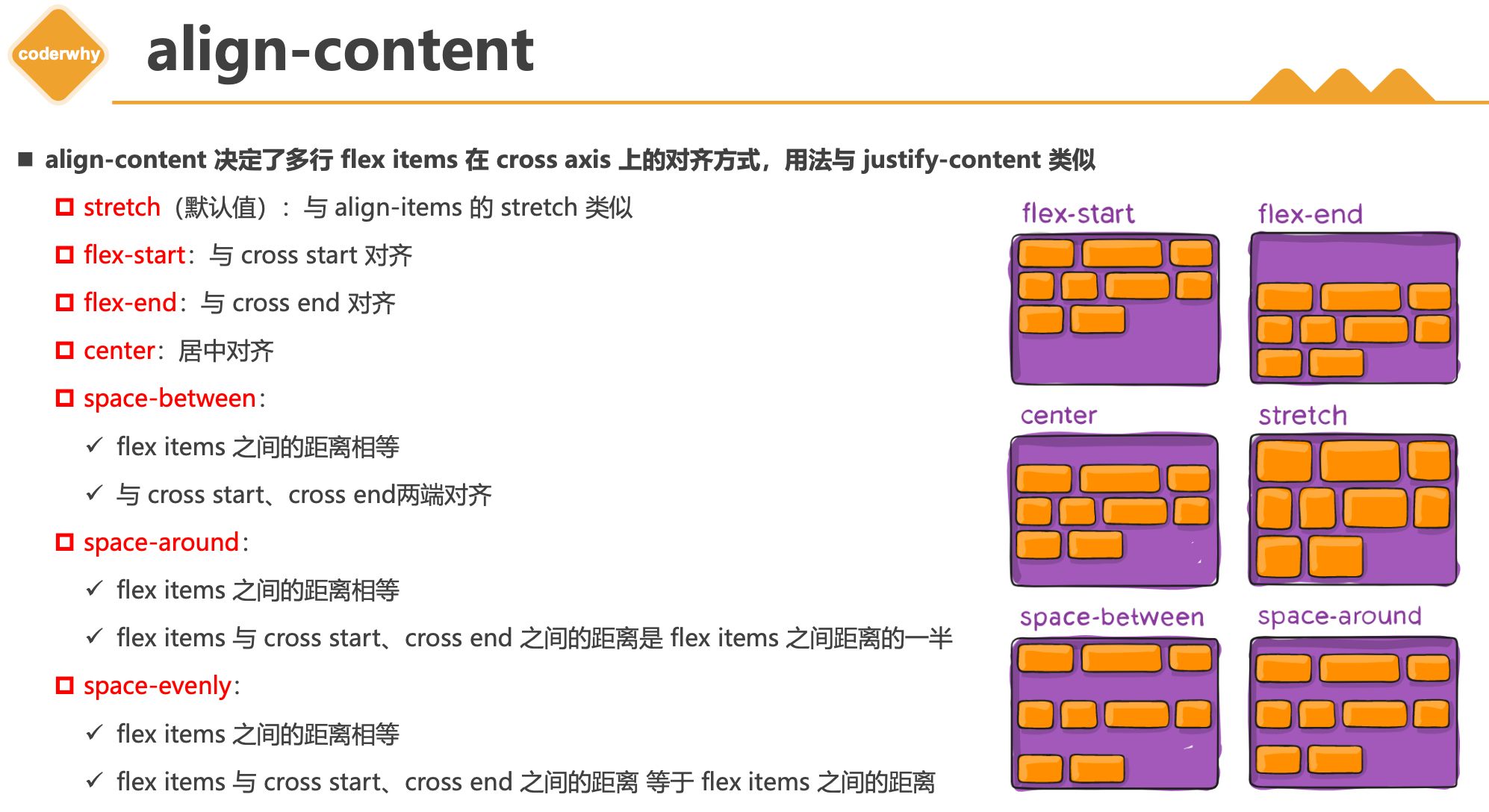
align-content
- align-content 决定了多行 flex items 在 cross axis 上的对齐方式,用法与 justify-content 类似
stretch(默认值):与 align-items 的 stretch 类似flex-start:与 cross start 对齐flex-end:与 cross end 对齐center:居中对齐space-between:
✓ flex items 之间的距离相等
✓ 与 cross start、cross end两端对齐space-around:
✓ flex items 之间的距离相等
✓ flex items 与 cross start、cross end 之间的距离是 flex items 之间距离的一半space-evenly:
✓ flex items 之间的距离相等
✓ flex items 与 cross start、cross end 之间的距离 等于 flex items 之间的距离
2.4. flex item中的属性
| * order * align-self | |
| * flex-grow * flex-shrink | |
| * flex-basis * flex |
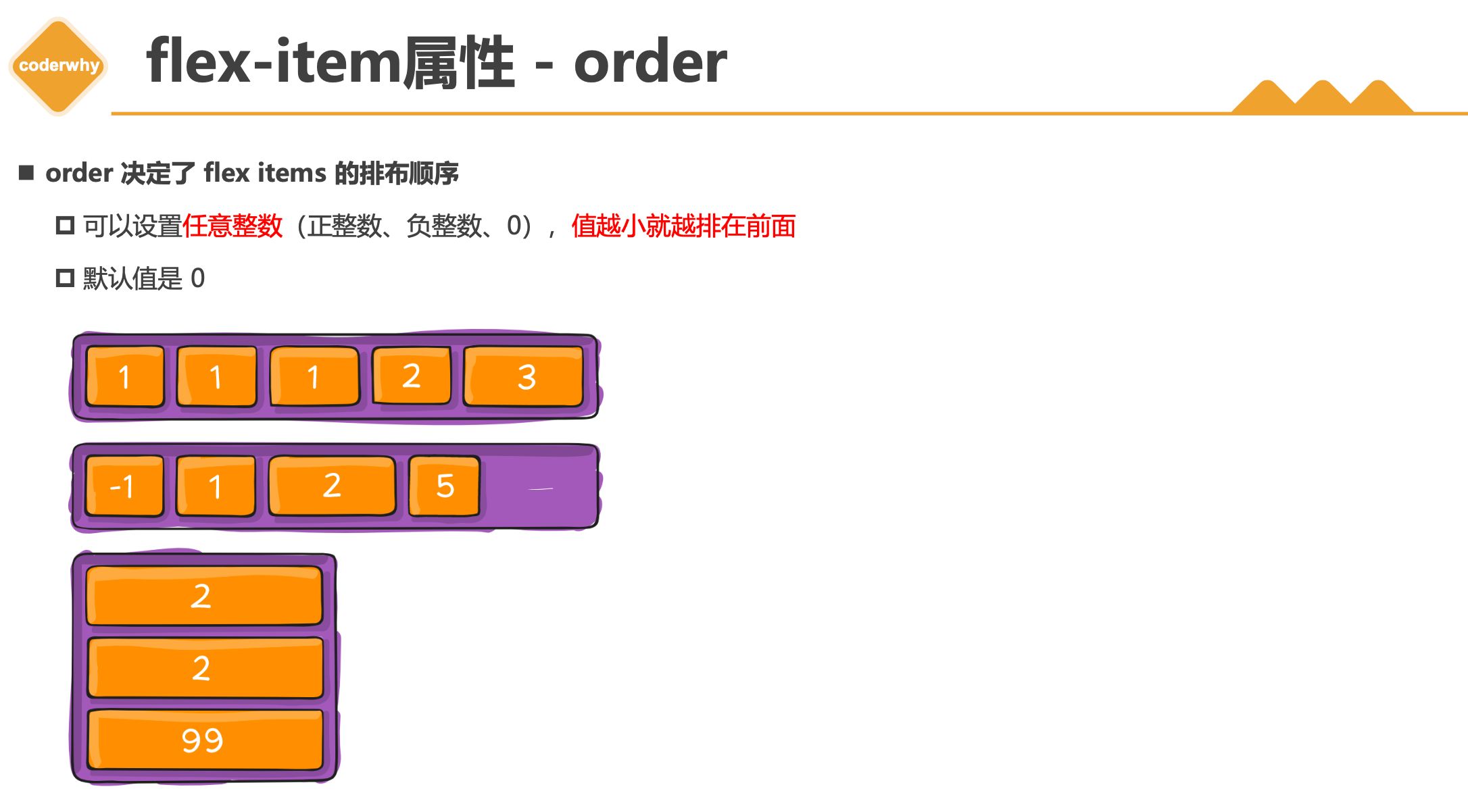
flex-item属性 - order
- order 决定了 flex items 的排布顺序
- 可以设置
任意整数(正整数、负整数、0),值越小就越排在前面 - 默认值是 0
- 可以设置
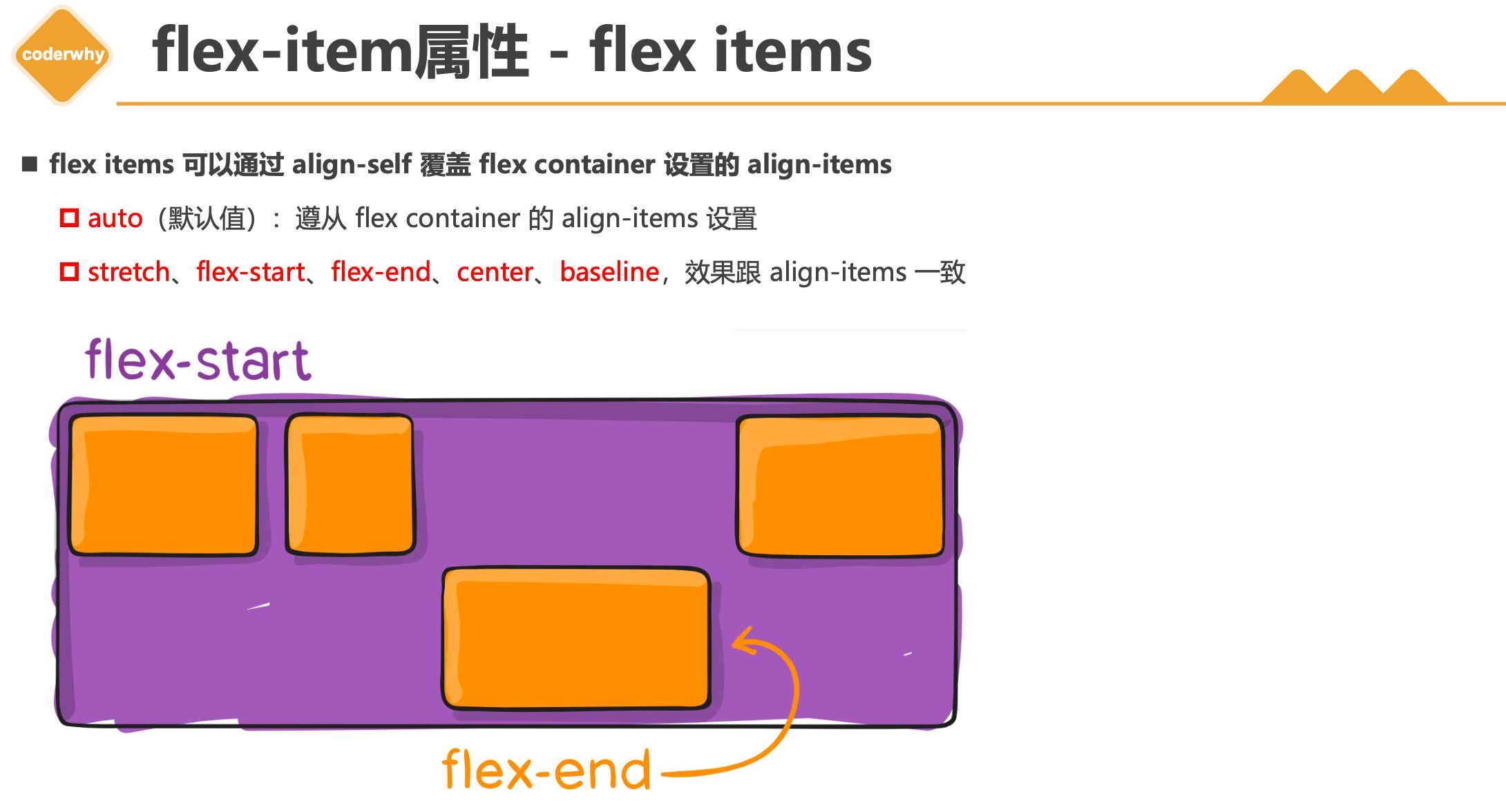
flex-item属性 - flex items
- flex items 可以通过 align-self 覆盖 flex container 设置的 align-items
auto(默认值):遵从 flex container 的 align-items 设置stretch、flex-start、flex-end、center、baseline,效果跟align-items一致
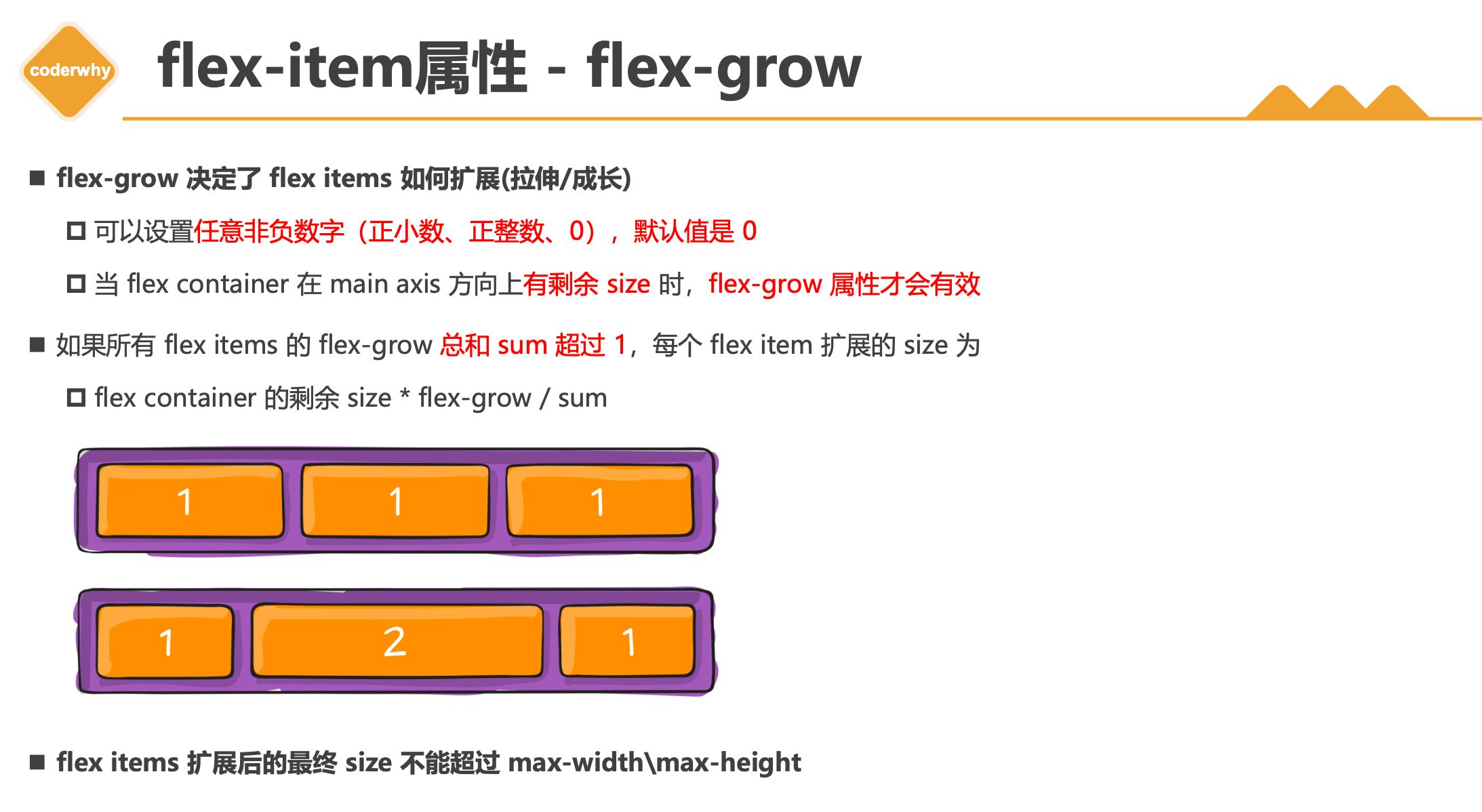
flex-item属性 - flex-grow
flex-grow 决定了 flex items 如何扩展(拉伸/成长)
- 可以设置
任意非负数字(正小数、正整数、0),默认值是 0 - 当 flex container 在 main axis 方向上
有剩余 size 时,flex-grow 属性才会有效
- 可以设置
如果所有 flex items 的 flex-grow
总和 sum 超过 1,每个 flex item 扩展的 size 为- flex container 的剩余 size * flex-grow / sum
flex items 扩展后的最终 size 不能超过 max-width\max-height
flex-item属性 - flex-shrink
- flex-shrink 决定了 flex items 如何收缩(缩小)
- 可以设置
任意非负数字(正小数、正整数、0),默认值是 1 - 当 flex items 在 main axis 方向上
超过了 flex container 的 size,flex-shrink 属性才会有效
- 可以设置
- 如果所有 flex items 的 flex-shrink 总和超过 1,每个 flex item 收缩的 size为
- flex items 超出 flex container 的 size * 收缩比例 / 所有 flex items 的收缩比例之和
- flex items 收缩后的最终
size不能小于min-width\min-height
flex-item属性 - flex-basis
- flex-basis 用来设置 flex items 在 main axis 方向上的 base size
auto(默认值)、具体的宽度数值(100px)
- 决定 flex items 最终 base size 的因素,从优先级高到低
- max-width\max-height\min-width\min-height
- flex-basis
- width\height
- 内容本身的 size
flex-item属性 - flex属性
- flex 是 flex-grow || flex-shrink || flex-basis 的简写,flex 属性可以指定1个,2个或3个值。

单值语法: 值必须为以下其中之一:
- 一个无单位数(
<number>): 它会被当作<flex-grow>的值。 - 一个有效的宽度(width)值: 它会被当作
<flex-basis>的值。 - 关键字none,auto或initial.
- 一个无单位数(
双值语法: 第一个值必须为一个无单位数,并且它会被当作
<flex-grow>的值。第二个值必须为以下之一:
✓ 一个无单位数:它会被当作
<flex-shrink>的值。✓ 一个有效的宽度值: 它会被当作
<flex-basis>的值。
三值语法:
- 第一个值必须为一个无单位数,并且它会被当作
<flex-grow>的值。 - 第二个值必须为一个无单位数,并且它会被当作
<flex-shrink>的值。 - 第三个值必须为一个有效的宽度值, 并且它会被当作
<flex-basis>的值。
- 第一个值必须为一个无单位数,并且它会被当作
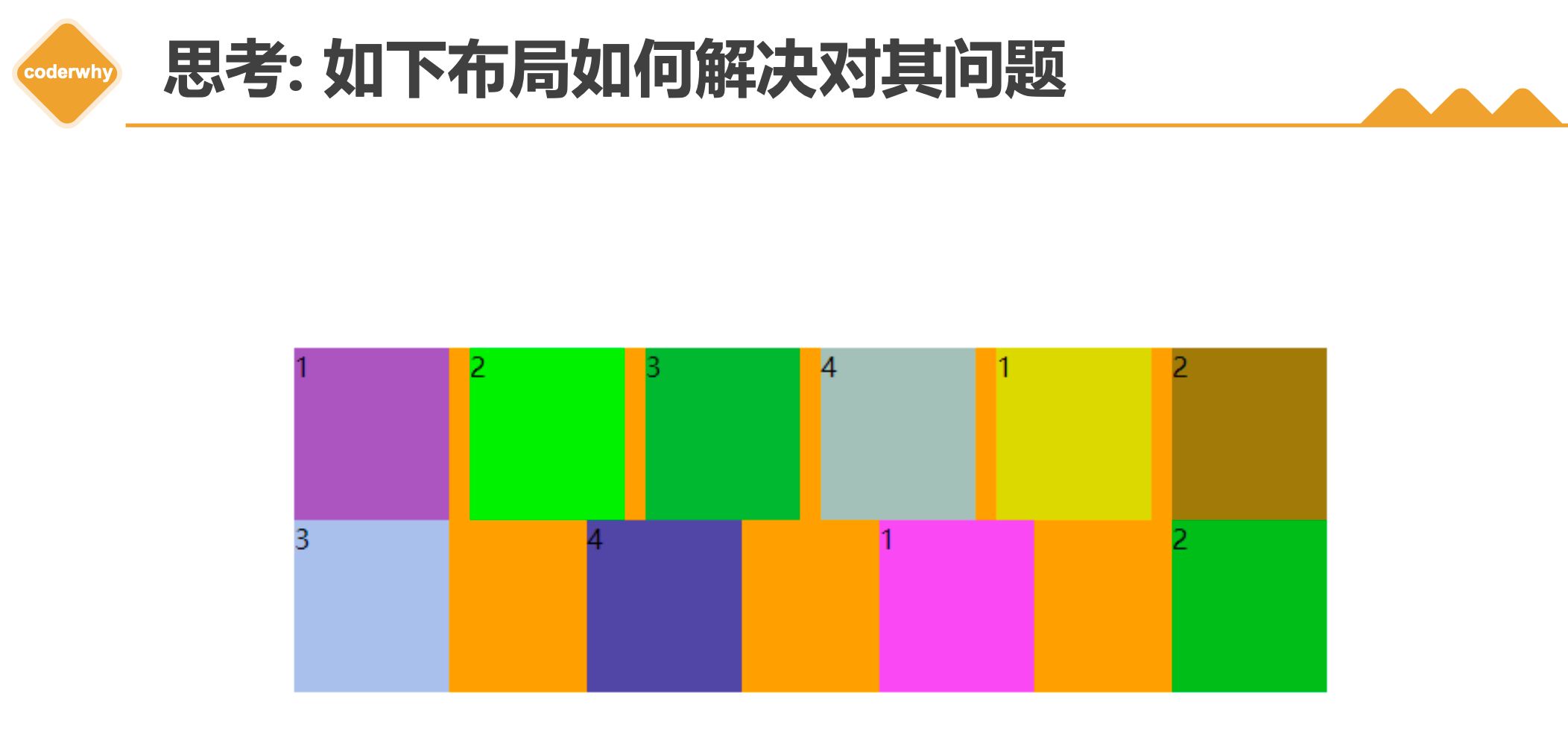
2.5. flex布局中justify-content最后一行布局问题
本博客所有文章除特别声明外,均采用 CC BY-NC-SA 4.0 许可协议。转载请注明来自 ZkeqのCoding日志!
相关推荐

评论