前言
因为某些特殊的需求,我想看到某个网站在过去的某天是什么样子的,尝试过在 互联网档案馆(archive.org) 上搜索,但是找到的内容只是 HTML 代码,因为是前后端分离的网站,其请求的接口数据并没有被保存下来,所以很遗憾,丢失了数据,只能从头来运行,这时我想起半年前写过一个 Python 截图小工具,因为那时候是随手写的,主要是给朋友用的,所以只算是个半成品,拿过来用发现并不能获取全尺寸屏幕截图,不大好用,所以趁着这次机会将这个工具完善了一下,调了一整天参数,可以说是在中文互联网社区来说算是比较好用的了。
对于这个项目我有如下创新点:
- 采用
4种截图模式可进行 全尺寸截图 方式选择,有滚动截图,有拉高屏幕截图 - 滚动截图时采用精准像素无缝拼接,并且在尾页做了特殊处理,不会出现多处来一块的情况
- 支持自动等待页面加载完成和强制截图延时,可以自行设置相关参数保证截图的完整性
- 项目采用
Github Actions驱动,一看仓库就知道可以跑,可以放心粘贴代码 - 同时采用
Actions方便部署,Fork改密钥即可运行 - 本项目爬取完数据之后会放回原分支,并且支持单个域名的详细保留截图日期
- 支持定时,全自动触发
补充:写完此文后我发现一个使用
ts + puppeteer编写的截图仓库,并且可运行于vercel推荐一波:
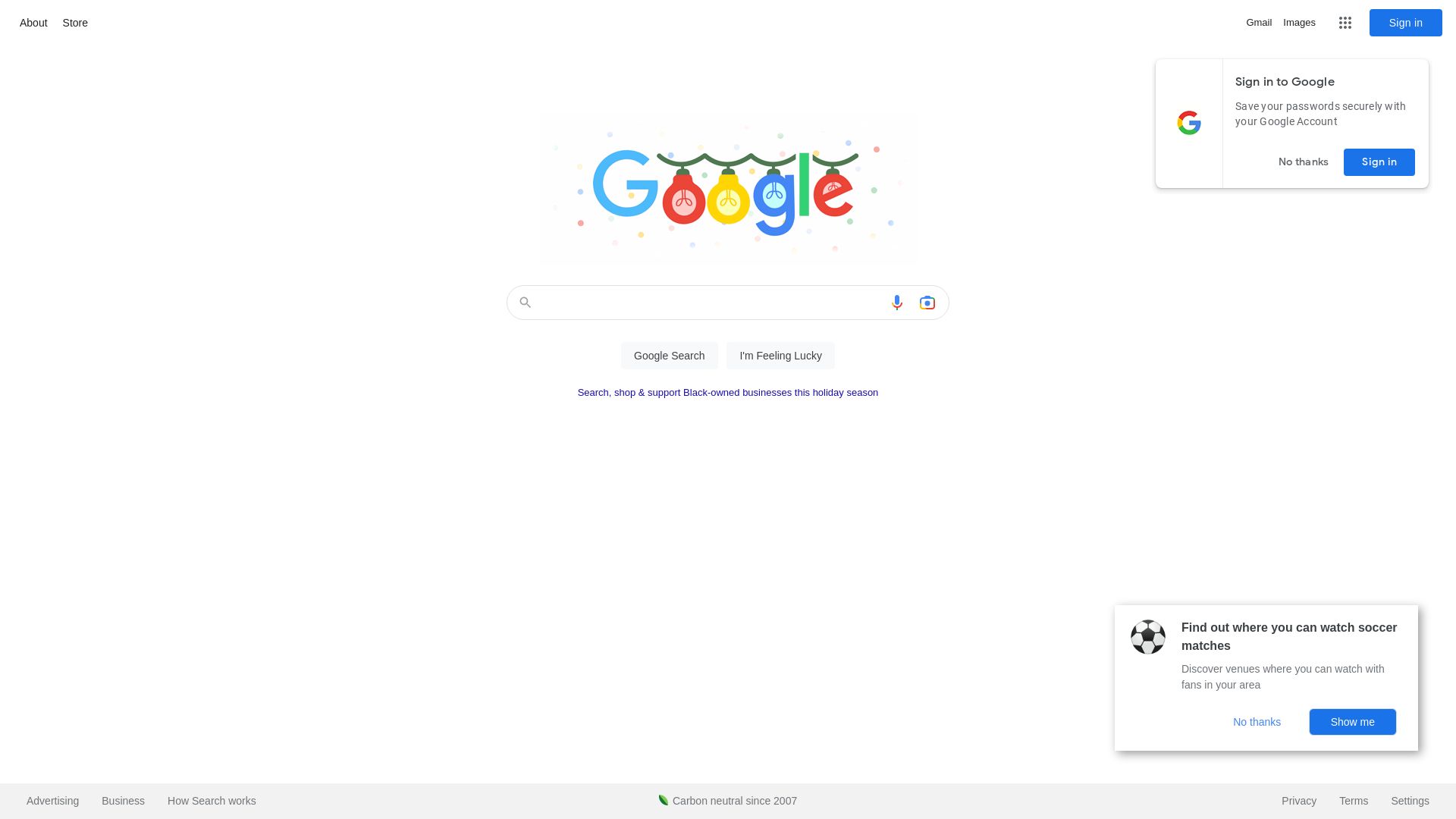
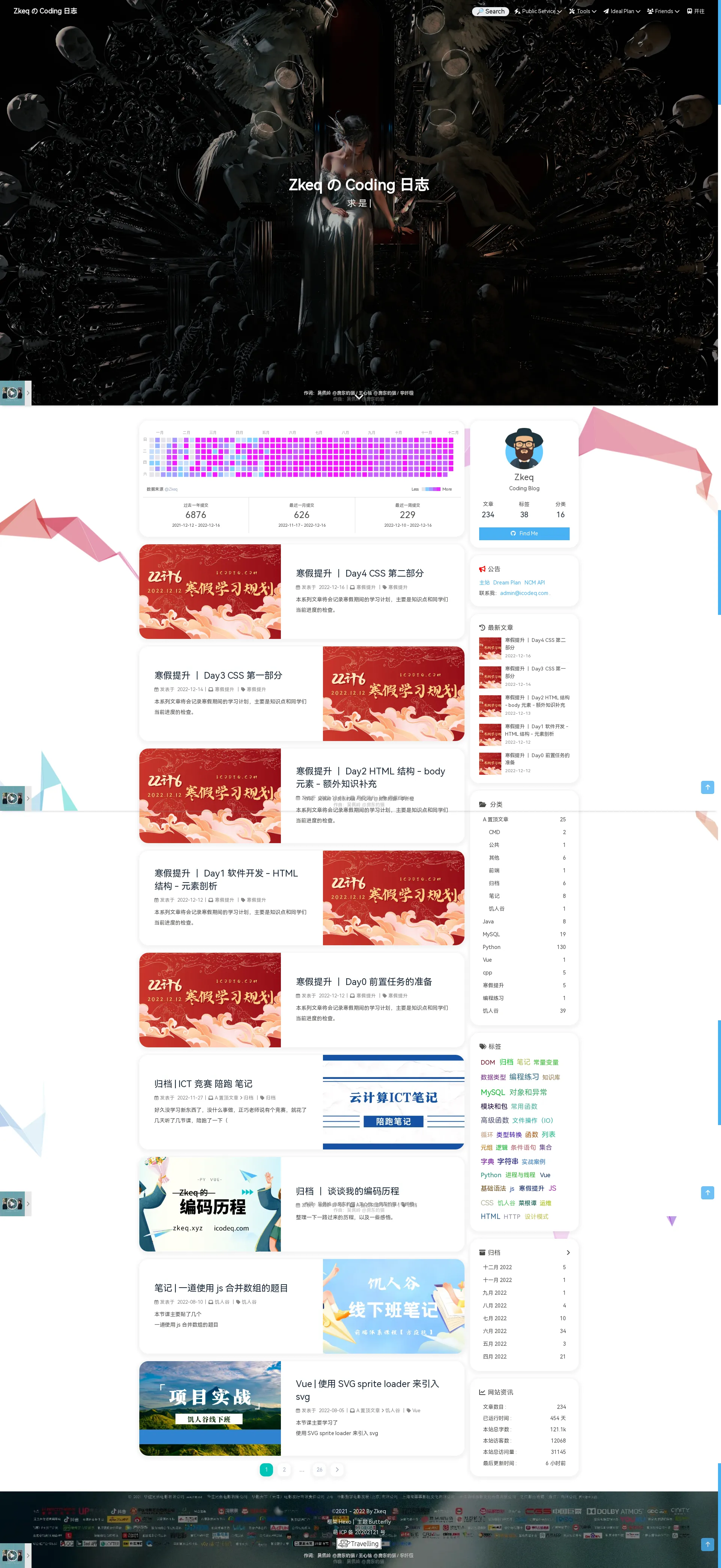
无图无真相
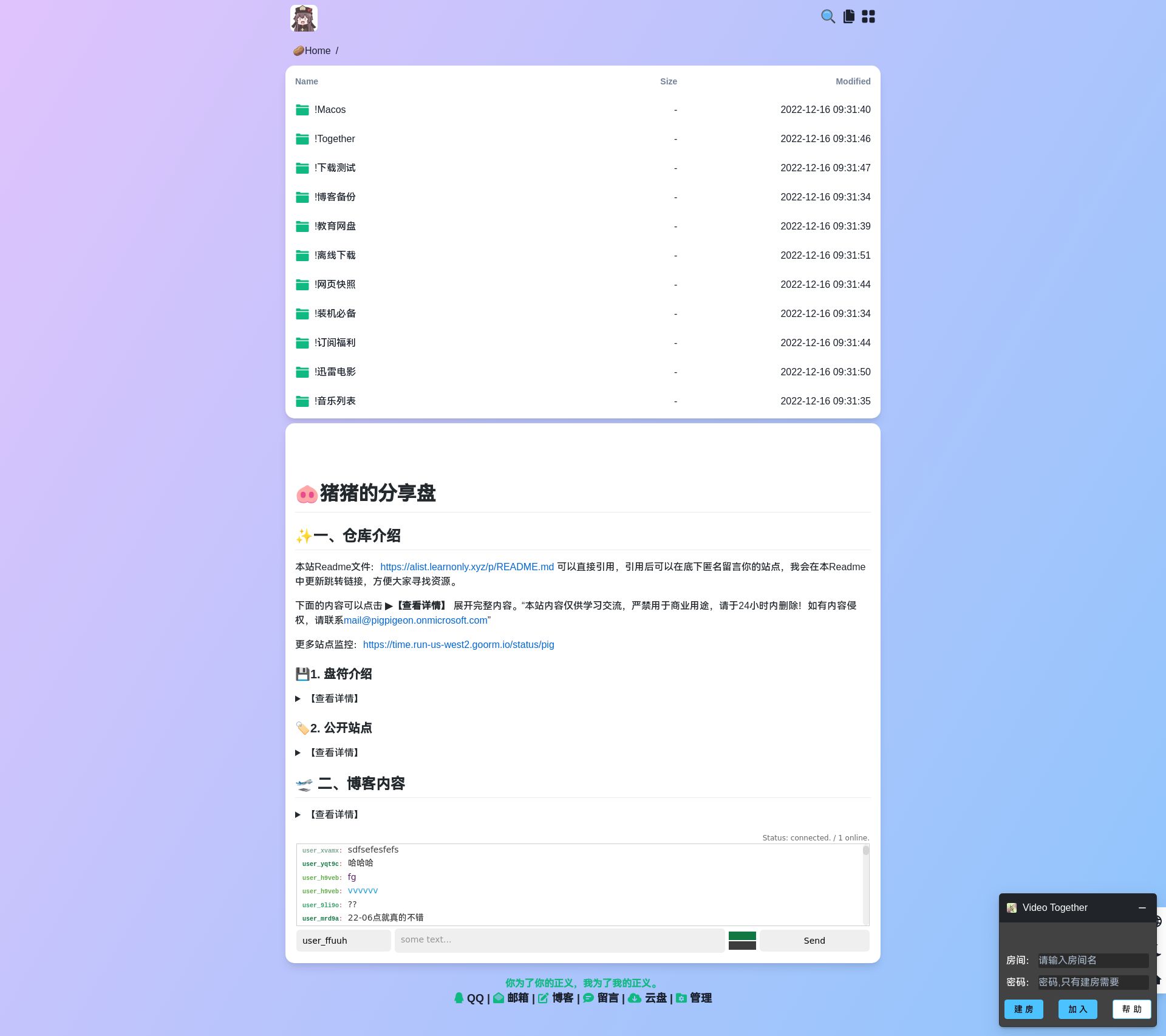
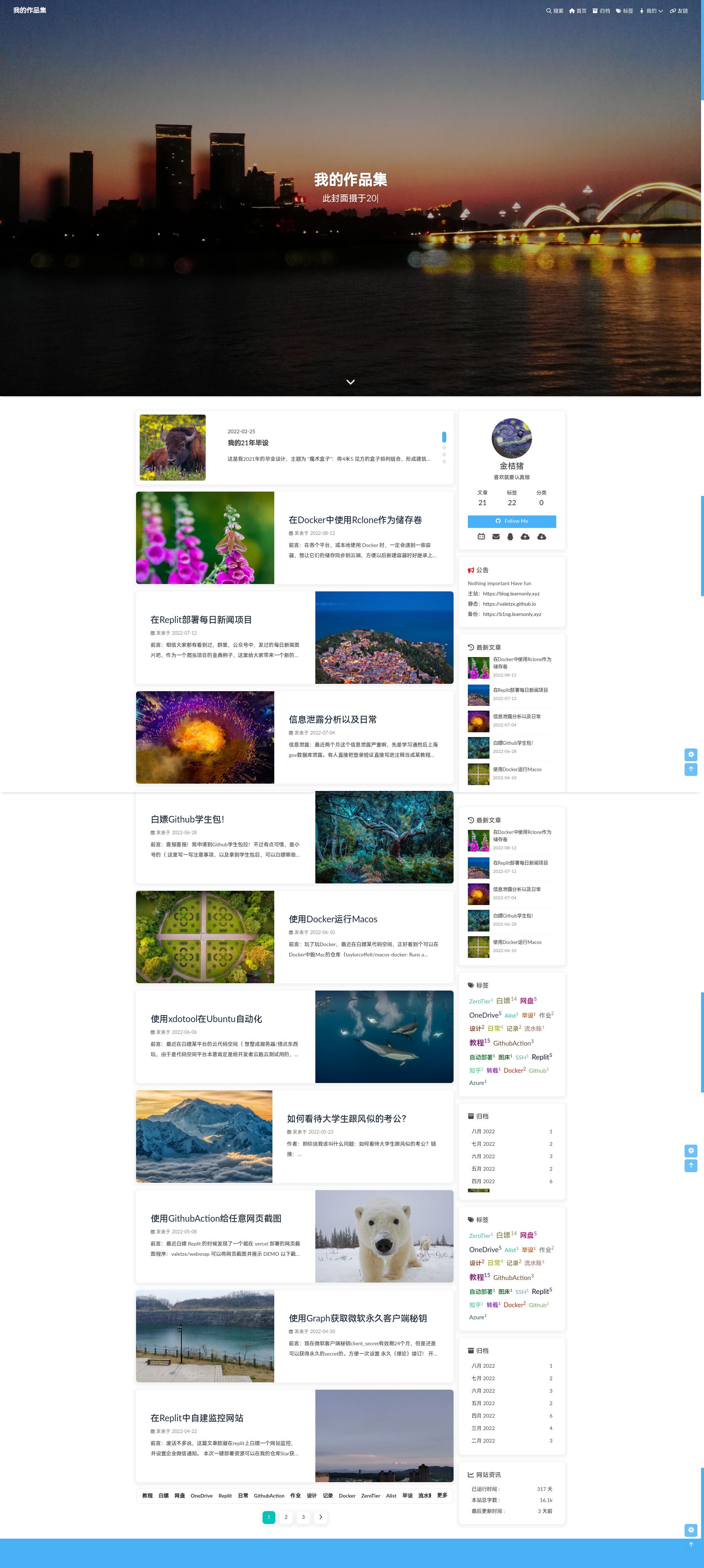
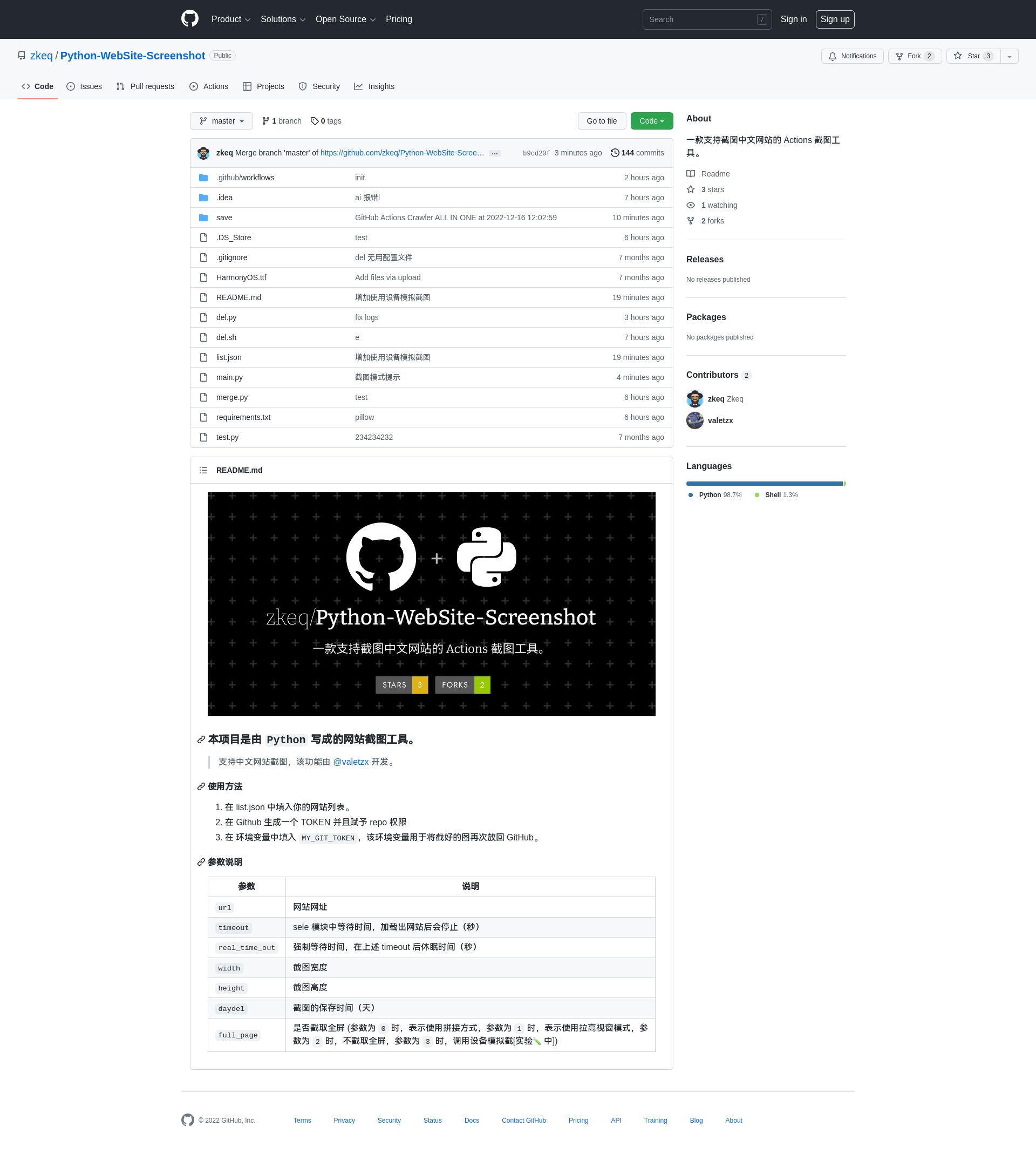
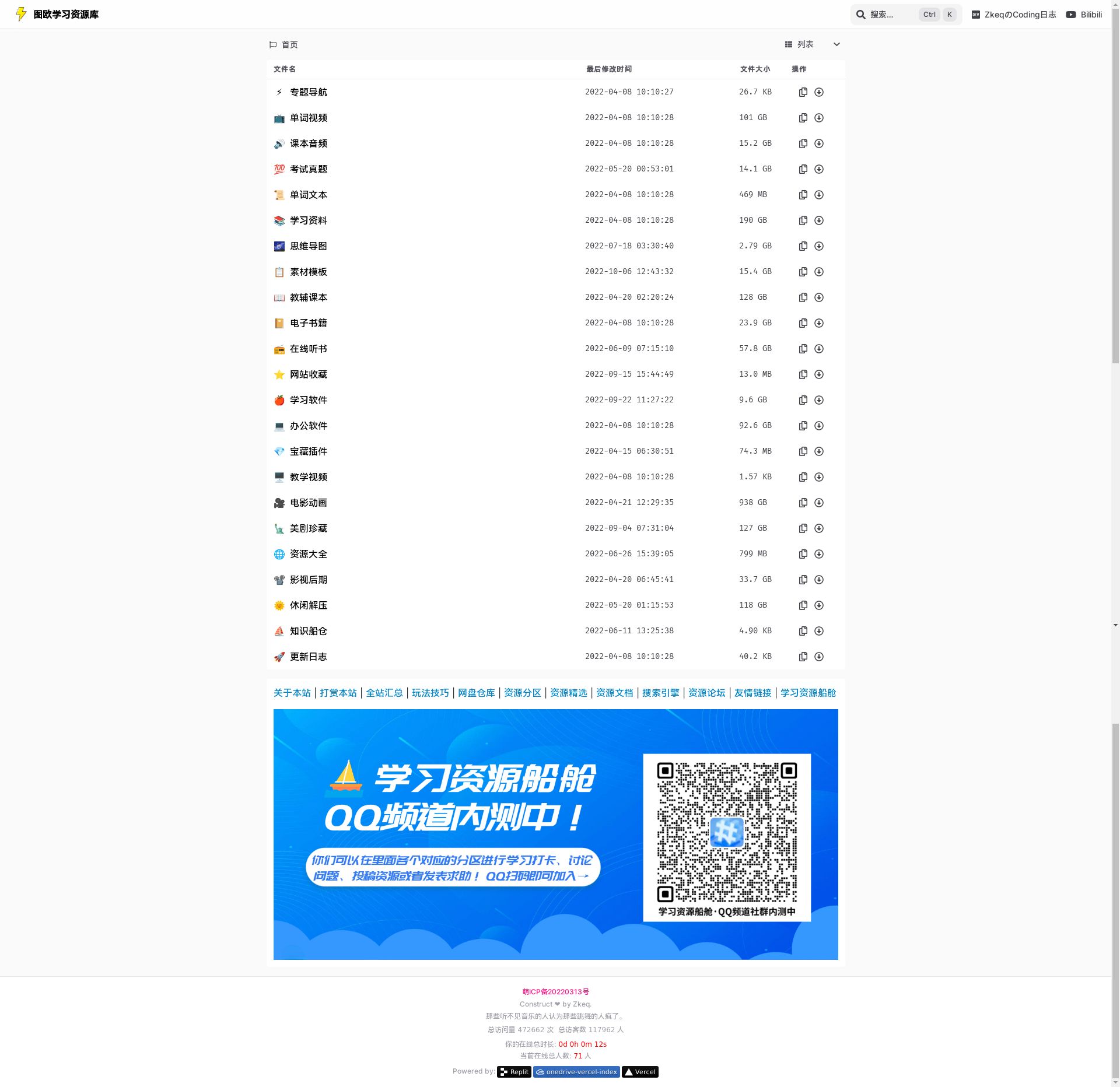

项目README
本项目是由
Python写成的网站截图工具。支持中文网站截图,该功能由 @valetzx 开发。
使用方法
- 在 list.json 中填入你的网站列表。
- 在 Github 生成一个 TOKEN 并且赋予 repo 权限
- 在 环境变量中填入
MY_GIT_TOKEN,该环境变量用于将截好的图再次放回 GitHub。
参数说明
| 参数 | 说明 |
|---|---|
url |
网站网址 |
timeout |
sele 模块中等待时间,加载出网站后会停止(秒) |
real_time_out |
强制等待时间,在上述 timeout 后休眠时间(秒) |
width |
截图宽度 |
height |
截图高度 |
daydel |
截图的保存时间(天) |
full_page |
是否截取全屏 (参数为 0 时,表示使用拼接方式,参数为 1 时,表示使用拉高视窗模式,参数为 2 时,不截取全屏,参数为 3 时,调用设备模拟截[实验🧪 中]) |
思路
- 这个项目我首先写的只是打开浏览器,然后截图
| def get_screenshot(url, width, height, timeout, real_time_out): | |
| print("正在初始化浏览器") | |
| chrome_options = webdriver.ChromeOptions() | |
| chrome_options.add_argument('lang=zh_CN.UTF-8') | |
| chrome_options.add_argument('--headless') | |
| chrome_options.add_argument('--no-sandbox') | |
| chrome_options.add_argument('--disable-gpu') | |
| chrome_options.add_argument('--disable-dev-shm-usage') | |
| chromedriver = "/usr/bin/chromedriver" | |
| os.environ["webdriver.chrome.driver"] = chromedriver | |
| driver = webdriver.Chrome(options=chrome_options, executable_path=chromedriver) | |
| print("正在尝试初始化窗口大小:", url) | |
| driver.set_window_size(width, height) | |
| print("正在获取网页") | |
| driver.get(url) | |
| print("正在等待网页加载完成") | |
| driver.implicitly_wait(timeout) | |
| time.sleep(real_time_out) | |
| print("获取网页成功,正在截图") | |
| pic_file = driver.get_screenshot_as_png() | |
| print("截图成功") | |
| driver.quit() | |
| return pic_file |
- 这里要感谢 @valetzx 他为本项目增加了中文语言支持功能。
| - name: Install Chinese Support | |
| run: | | |
| git pull | |
| sudo apt-get install language-pack-zh-han* | |
| sudo apt-get install ttf-mscorefonts-installer | |
| sudo apt-get install fontconfig | |
| LANG="zh_CN.UTF-8" | |
| cp HarmonyOS.ttf /usr/share/fonts/ | |
| sudo chmod 644 /usr/share/fonts/HarmonyOS.ttf | |
| sudo mkfontscale | |
| sudo mkfontdir | |
| sudo fc-cache -fv | |
| python add: chrome_options.add_argument('lang=zh_CN.UTF-8') |
- 就这样,基本的截图功能算是实现了,也就是进入到今天的正题,如何进行长截图呢?
经过查阅资料,发现 selenium3 以及后续版本已将此功能删去
于是我想到了最容易想到的方法:截图多张,然后拼接
| # 截取代码 | |
| while next_scrolled_height < total_height: | |
| driver.execute_script(f"window.scrollTo(0, {next_scrolled_height});") | |
| next_scrolled_height += height | |
| if total_height - scrolled_height < height: | |
| next_scrolled_height = total_height | |
| print("正在截图:", scrolled_height, next_scrolled_height) | |
| time.sleep(2) | |
| pic_file = os.path.join(host_dir, now_time + "|" + str(scrolled_height) + "_"+ str(next_scrolled_height) + ".png") | |
| scrolled_height += height | |
| image_path_list.append(pic_file) | |
| driver.save_screenshot(pic_file) | |
| page += 1 |
| # 拼接代码 | |
| # # 保存图片 | |
| # new_img.save("new_image.jpg") | |
| _temp = [] | |
| for i in image_path_list: | |
| _temp.append(Image.open(i)) | |
| # 裁剪图片 | |
| for i in range(len(_temp)): | |
| if i == range(len(_temp))[-1]: | |
| _temp[i] = _temp[i].crop((0, height - (int(image_path_list[-1].split("|")[-1].split(".")[0].split("_")[-1]) - int(image_path_list[-1].split("|")[-1].split(".")[0].split("_")[0])), _temp[i].width, height )) | |
| else: | |
| _temp[i] = _temp[i].crop((0, 0, _temp[i].width, height)) | |
| # 创建新图像 | |
| new_img = Image.new("RGB", (_temp[0].width, total_height)) | |
| # 粘贴图片 | |
| for i in range(len(_temp)): | |
| new_img.paste(_temp[i], (0, i*height)) | |
| # 保存图片 | |
| new_img.save(os.path.join(host_dir, now_time + ".png")) | |
| print("截图成功") | |
| driver.quit() |
好像写法不大优雅,但是可以无缝拼接…
笔者在撰写此文时,搜到了似乎更为优雅的代码,可以看看这个:
上面的代码调参数调了好长时间,大半天的时间过去了,但是我写完之后突然想到:既然我已经有代码获取到页面的整体高度,那么我直接让浏览器的高度等于找个高度,不就没有滚动条了么,而且也不用拼接了
于是就发现只要改动两行 就可以实现…
| driver.set_window_size(width, total_height) | |
| # 滚动到底部 | |
| driver.execute_script(f"window.scrollTo(0, {total_height});") |
离谱,似乎前面的工作白做了?那么多白写了?
后来发现不是,这张方法有bug,以我的博客为例,会变成这样:
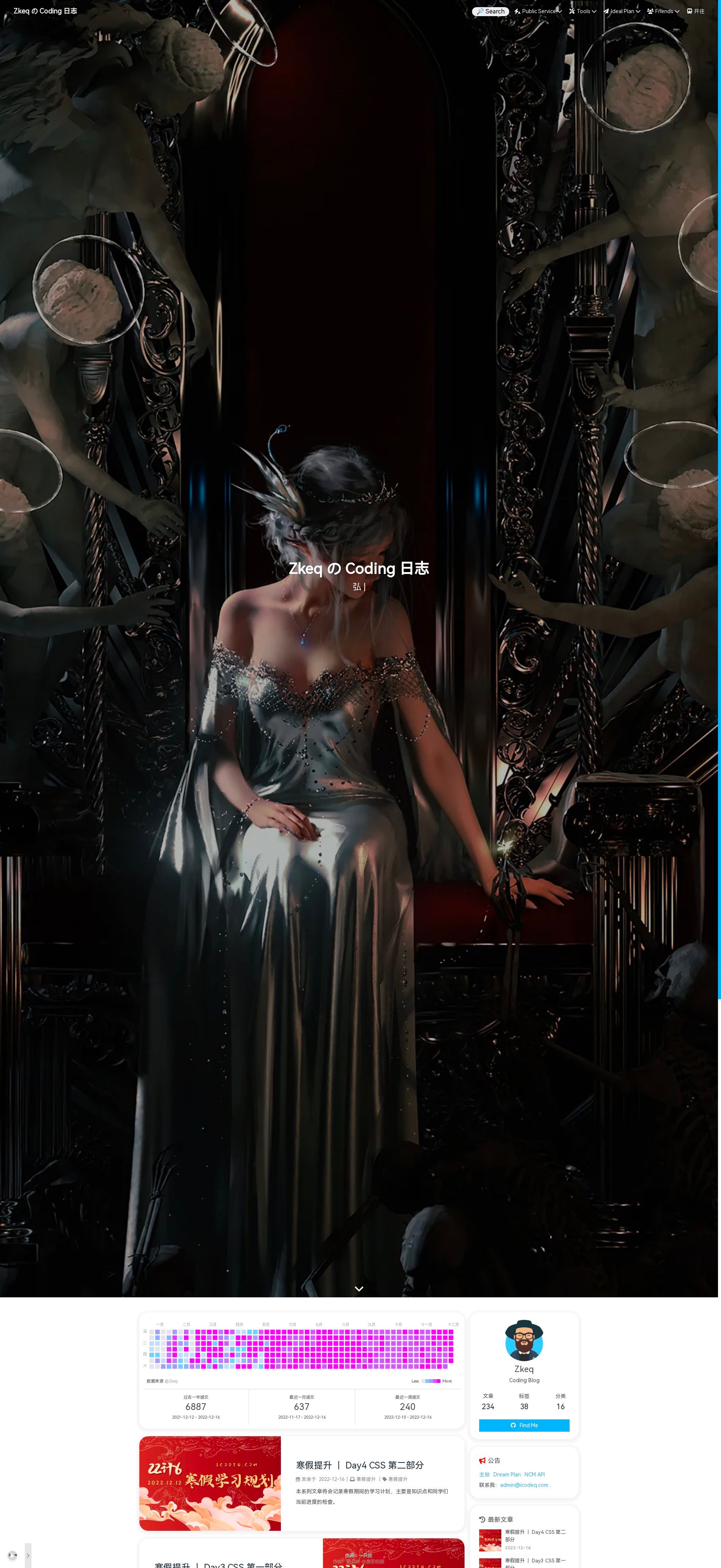
也就是说屏幕被拉长了..但是同时背景图片因为设置了某个样式,他也被拉长了
还好,之前写的代码并没有浪费,也就是这时候派上用场了
又去搜了一些文章,发现还有一种 设备模拟 的方式,遂又加上:
| driver.execute_cdp_cmd('Emulation.setDeviceMetricsOverride', {'mobile': False, 'width': width, 'height': total_height, 'deviceScaleFactor': 1}) | |
| res = driver.execute_cdp_cmd('Page.captureScreenshot', { 'fromSurface': True}) |
于是再加上第一次的不进行操作就截图,一共是四种,于是便整理好作为一个参数供用户选择
附上完整代码:
| import os | |
| import json | |
| import time | |
| from urllib.parse import urlparse | |
| import os | |
| import time | |
| from PIL import Image | |
| import base64 | |
| from selenium import webdriver | |
| def get_screenshot(url, width, height, timeout, real_time_out, host_dir, full_page): | |
| print("正在初始化浏览器") | |
| chrome_options = webdriver.ChromeOptions() | |
| chrome_options.add_argument('lang=zh_CN.UTF-8') | |
| chrome_options.add_argument('--headless') | |
| chrome_options.add_argument('--no-sandbox') | |
| chrome_options.add_argument('--disable-gpu') | |
| chrome_options.add_argument('--disable-dev-shm-usage') | |
| chromedriver = "/usr/bin/chromedriver" | |
| os.environ["webdriver.chrome.driver"] = chromedriver | |
| driver = webdriver.Chrome(options=chrome_options, executable_path=chromedriver) | |
| print("正在尝试初始化窗口大小:", url) | |
| driver.set_window_size(width, height) | |
| print("正在获取网页") | |
| driver.get(url) | |
| print("正在等待网页加载完成") | |
| driver.implicitly_wait(timeout) | |
| time.sleep(real_time_out) | |
| print("获取网页成功,正在截图") | |
| # 获取页面总高度 | |
| total_height = driver.execute_script("return Math.max( document.body.scrollHeight, document.body.offsetHeight, document.documentElement.clientHeight, document.documentElement.scrollHeight, document.documentElement.offsetHeight)") | |
| if full_page != 0: | |
| now_time = time.strftime("%Y-%m-%d_%H-%M-%S", time.localtime()) | |
| pic_file = os.path.join(host_dir, now_time + ".png") | |
| if full_page == 3: | |
| print("|!!!!!|采用设备模拟截图模式") | |
| # 直接开启设备模拟,不要再手动开devtools了,否则截图截的是devtools的界面! | |
| driver.execute_cdp_cmd('Emulation.setDeviceMetricsOverride', {'mobile': False, 'width': width, 'height': total_height, 'deviceScaleFactor': 1}) | |
| # 执行截图 | |
| res = driver.execute_cdp_cmd('Page.captureScreenshot', { 'fromSurface': True}) | |
| # 返回的base64内容写入PNG文件 | |
| with open(pic_file, 'wb') as f: | |
| img = base64.b64decode(res['data']) | |
| f.write(img) | |
| driver.quit() | |
| return None | |
| if full_page == 1: | |
| print("|!!!!!|采用拉高视窗截图模式") | |
| driver.set_window_size(width, total_height) | |
| # 滚动到底部 | |
| driver.execute_script(f"window.scrollTo(0, {total_height});") | |
| else: | |
| print("|!!!!!|不进行任何操作,直接截图") | |
| # 截图 | |
| driver.save_screenshot(pic_file) | |
| driver.quit() | |
| return None | |
| print("|!!!!!|采用滚动截图模式") | |
| scrolled_height = 0 | |
| next_scrolled_height = 0 | |
| print("页面总高度:", total_height) | |
| now_time = time.strftime("%Y-%m-%d_%H-%M-%S", time.localtime()) | |
| image_path_list = [] | |
| page = 1 | |
| # 滚动页面 | |
| while next_scrolled_height < total_height: | |
| driver.execute_script(f"window.scrollTo(0, {next_scrolled_height});") | |
| next_scrolled_height += height | |
| if total_height - scrolled_height < height: | |
| next_scrolled_height = total_height | |
| print("正在截图:", scrolled_height, next_scrolled_height) | |
| time.sleep(2) | |
| pic_file = os.path.join(host_dir, now_time + "|" + str(scrolled_height) + "_"+ str(next_scrolled_height) + ".png") | |
| scrolled_height += height | |
| image_path_list.append(pic_file) | |
| driver.save_screenshot(pic_file) | |
| page += 1 | |
| # # 打开图片 | |
| # img1 = Image.open("0_1080.png") | |
| # img2 = Image.open("1080_2160.png") | |
| # img3 = Image.open("2160_3240.png") | |
| # img4 = Image.open("3240_4000.png") | |
| # # 裁剪图片 | |
| # cropped_img1 = img1.crop((0, 0, img1.width, 1080)) | |
| # cropped_img2 = img2.crop((0, 0, img2.width, 1080)) | |
| # cropped_img3 = img3.crop((0, 0, img3.width, 1080)) | |
| # cropped_img4 = img4.crop((0, 0, img4.width, 760)) | |
| # # 创建新图像 | |
| # new_img = Image.new("RGB", (img1.width, 4000)) | |
| # # 粘贴图片 | |
| # new_img.paste(cropped_img1, (0, 0)) | |
| # new_img.paste(cropped_img2, (0, 1080)) | |
| # new_img.paste(cropped_img3, (0, 2160)) | |
| # new_img.paste(cropped_img4, (0, 3240)) | |
| # # 保存图片 | |
| # new_img.save("new_image.jpg") | |
| _temp = [] | |
| for i in image_path_list: | |
| _temp.append(Image.open(i)) | |
| # 裁剪图片 | |
| for i in range(len(_temp)): | |
| if i == range(len(_temp))[-1]: | |
| _temp[i] = _temp[i].crop((0, height - (int(image_path_list[-1].split("|")[-1].split(".")[0].split("_")[-1]) - int(image_path_list[-1].split("|")[-1].split(".")[0].split("_")[0])), _temp[i].width, height )) | |
| else: | |
| _temp[i] = _temp[i].crop((0, 0, _temp[i].width, height)) | |
| # 创建新图像 | |
| new_img = Image.new("RGB", (_temp[0].width, total_height)) | |
| # 粘贴图片 | |
| for i in range(len(_temp)): | |
| new_img.paste(_temp[i], (0, i*height)) | |
| # 保存图片 | |
| new_img.save(os.path.join(host_dir, now_time + ".png")) | |
| print("截图成功") | |
| driver.quit() | |
| # 读取list.json文件 | |
| with open("list.json", "r") as f: | |
| data = json.load(f) | |
| for i in data: | |
| # 获取url | |
| url = i["url"] | |
| timeout = i["timeout"] | |
| # 获取宽度和高度 | |
| width = i["width"] | |
| height = i["height"] | |
| real_time_out = i["real_time_out"] | |
| full_page = i["full_page"] | |
| # 写入文件 | |
| host = urlparse(url).netloc | |
| host_dir = os.path.join("save", host) | |
| if not os.path.exists(host_dir): | |
| os.mkdir(host_dir) | |
| get_screenshot(url, width, height, timeout, real_time_out, host_dir, full_page) |
一些其他的本文未提及的相关资料
笔者只是看到这些,并未全部验证可行性,感谢所有为中文编程区做出教程的博主!